Blog

  • How to Compress and Resize Images for Web and Social Media (2026 Guide)

    How to Compress and Resize Images for Web and Social Media (2026 Guide)

    Compressing and resizing images effectively in 2026 requires tools like Adobe Photoshop, Microsoft PowerToys, or browser-based platforms like Imgresizer.io. Adjust pixel dimensions for your target platform and set JPEG quality to 70-80%, or switch to AVIF format to reduce file weight without losing visual clarity.

    Mastering the Balance: How to Compress and Resize Images Without Quality Loss

    Optimizing visuals for the web is a two-step process: adjust physical dimensions (resizing), then reduce data density (compression). According to Business.com, standard JPEG compression typically cuts file size by 40-60%, striking a balance between professional quality and lightweight files.

    Step 1: Adjusting Pixel Dimensions (Resizing)

    Resizing changes the total pixel count to match where the image will be displayed. If your website hero banner is 1200px wide, uploading a 4000px original wastes bandwidth.

    Always lock the Aspect Ratio. Without it, images appear stretched or squashed. Tools like EverydayTools let you set the width while automatically calculating the height to maintain proper proportions.
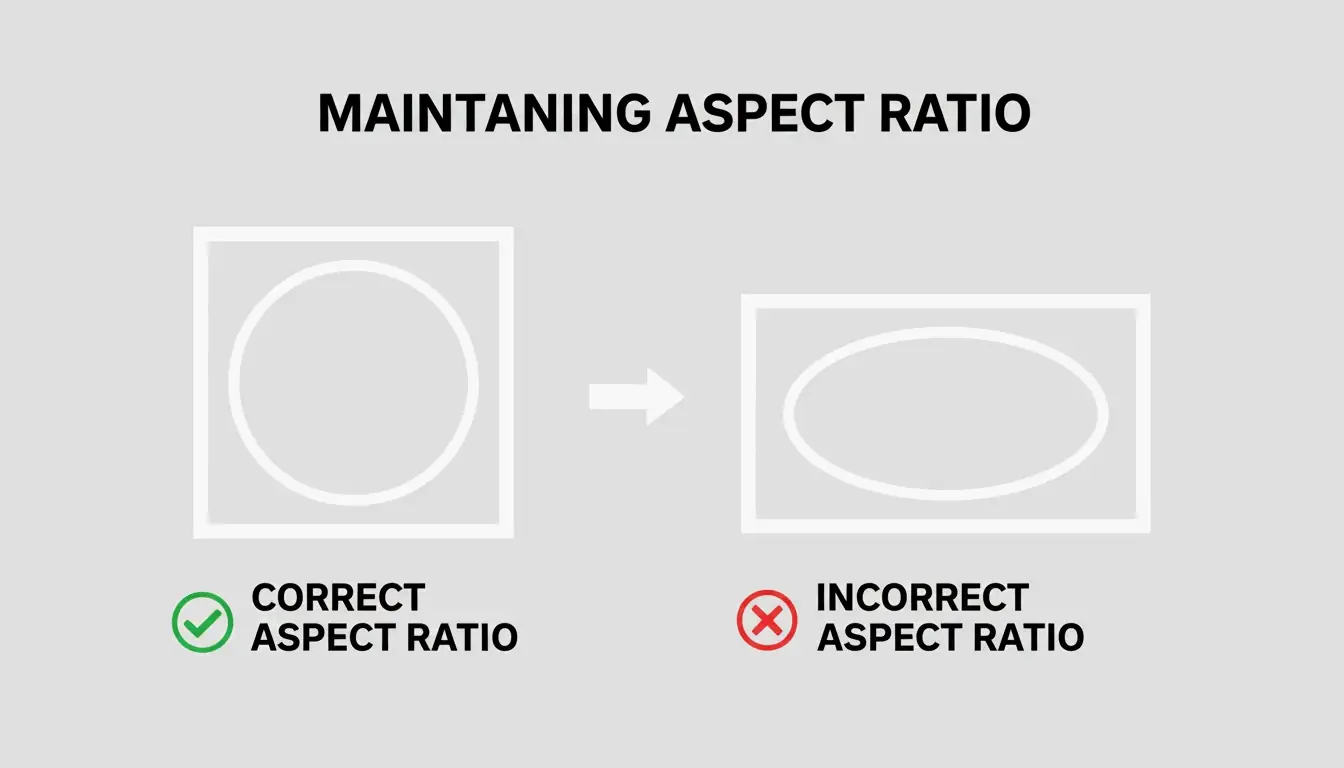
    A simple visual metaphor for aspect ratio: a frame maintaining its proportions vs. one that is distorted.

    Step 2: Applying Compression Algorithms

    Once dimensions are set, compression reduces file size further.

    Compression Type How It Works File Size Impact Best For
    Lossy (JPEG 70-80%) Strips high-frequency data invisible to the eye 50-70% smaller Web, social media
    Lossless (PNG, WebP lossless) Removes redundancy without data loss 20-40% smaller Logos, text graphics, archival

    In 2026, the standard JPEG / JPG quality setting is 70-80%. This removes fine details the human eye cannot distinguish without creating visible artifacts.

    Why Image Optimization is Critical for Core Web Vitals (LCP)

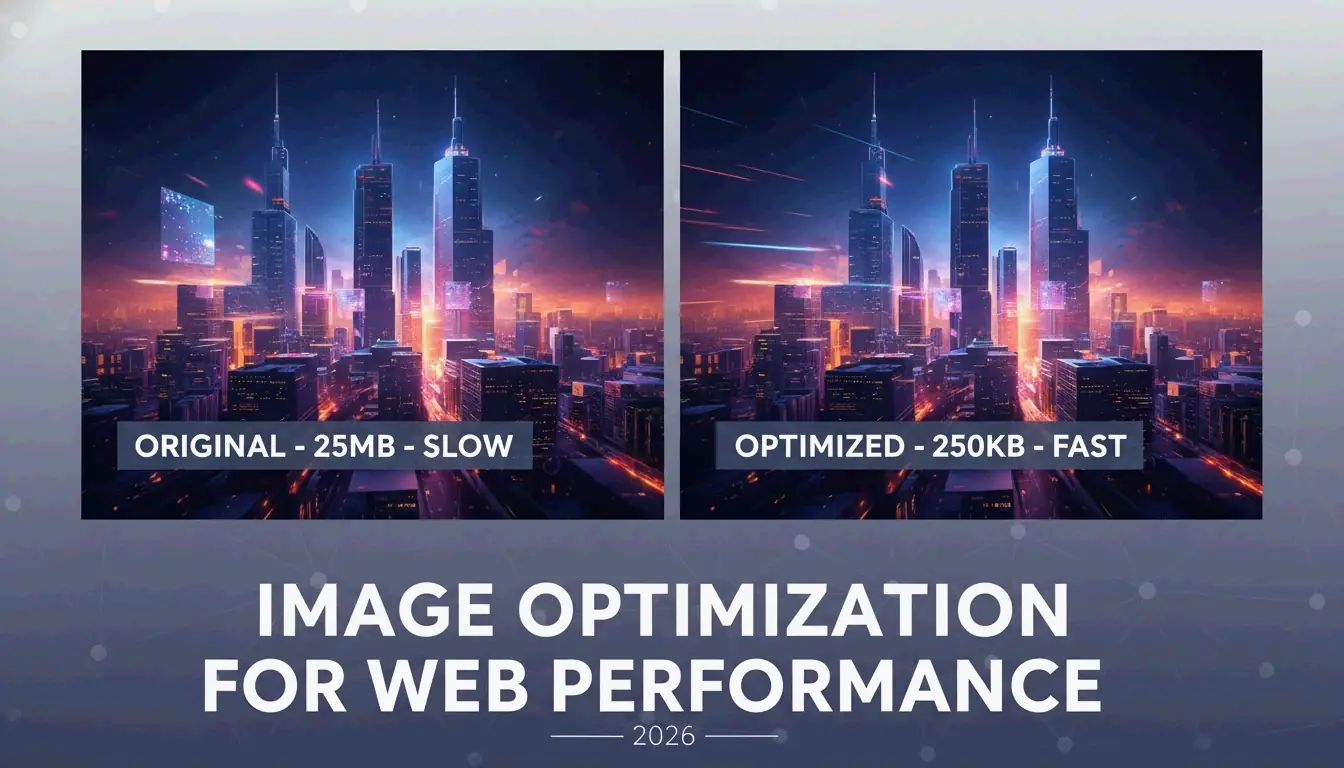
    Image optimization is a basic SEO requirement in 2026. Google’s Core Web Vitals use Largest Contentful Paint (LCP) to measure how quickly the largest visual element (typically a hero image) loads. Large, unoptimized images are the primary cause of slow LCP scores, which directly hurt search rankings.

    The business impact is measurable:

    Load Time Conversion Impact Source
    1 second 5x higher conversion than 10s sites Illustrate Digital
    3+ seconds 53% of mobile users abandon Industry benchmark
    10 seconds Lowest conversion rates Illustrate Digital

    A 2026 report from the Baymard Institute found that 62% of e-commerce sites still struggle with slow visuals, leading to frustrated users and high bounce rates.
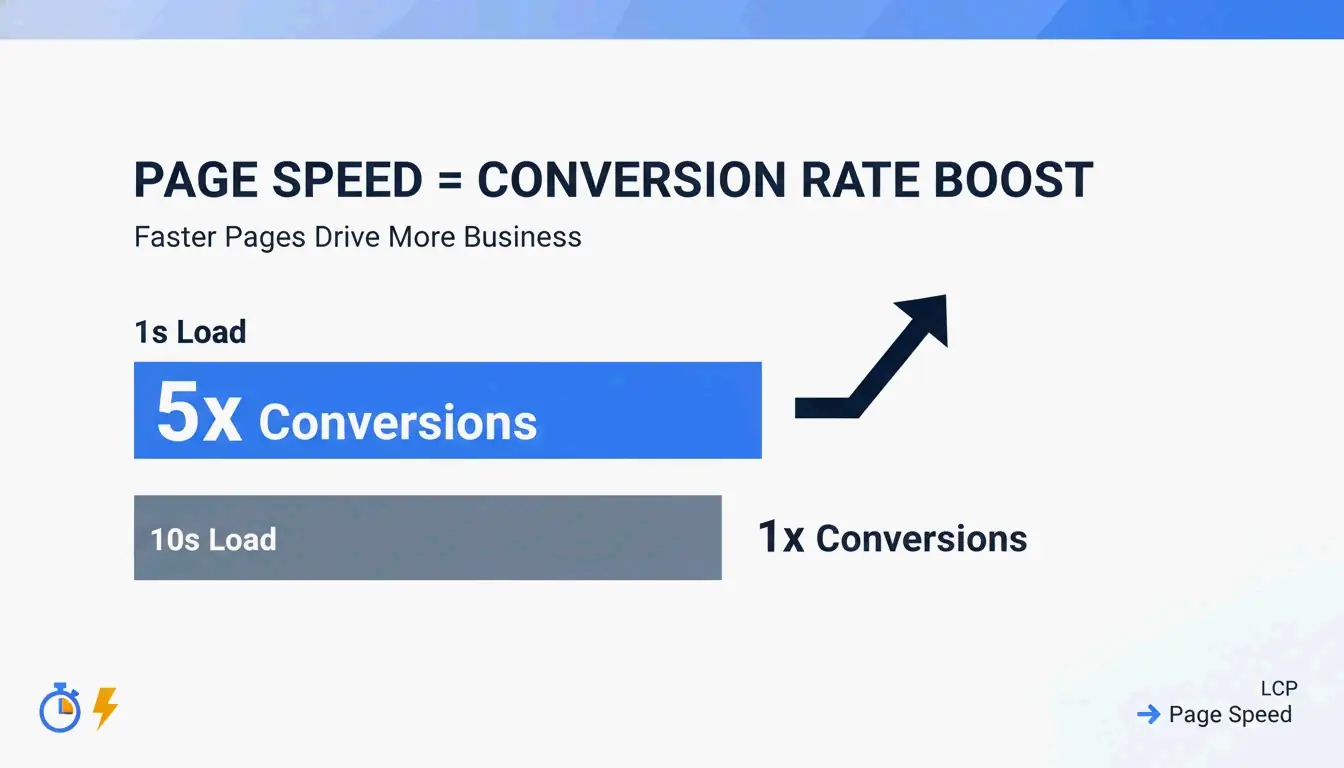
    A minimalist comparison showing the direct correlation between page load speed and conversion rates.

    AVIF vs. WebP: Which Format Should You Choose in 2026?

    Format Efficiency vs. JPEG Detail Preservation Browser Support (2026)
    WebP 25-30% smaller Good Broad
    AVIF 30-50% smaller Better (high-detail areas) Growing, modern browsers
    JPEG Baseline Standard Universal

    AVIF has become the preferred next-gen format for SEO in 2026. It is approximately 25-30% more efficient than WebP and preserves high-detail areas more effectively. The recommended approach is a “fallback” system: serve AVIF when supported, fall back to WebP or JPEG for older browsers.

    Best Tools to Compress and Resize Images: From Pro to Privacy-First

    Quality directly affects revenue. Salsify’s 2025 Consumer Research Report found that 42% of shoppers abandon a purchase if product images are missing or look low-quality.

    Offline and Bulk Processing for Windows/Mac

    Tool Platform Key Feature Best For
    Adobe Photoshop Win/Mac Color profiles, batch exports, full control Professional work
    Microsoft PowerToys Windows Right-click resize in File Explorer, bulk presets Fast batch processing

    Microsoft PowerToys adds a shortcut to File Explorer for right-click bulk resizing of hundreds of images using “Fit,” “Fill,” or “Stretch” presets.

    Zero-Upload Web Tools for Maximum Privacy

    For sensitive client assets, privacy is paramount. Tools like Imgresizer.io and EverydayTools use the HTML Canvas API, processing images entirely inside your browser’s memory. Since nothing is uploaded to a server, these “Zero-Upload” tools are the safest option for compression and format conversion.

    Automation and AI: Using MCP and Code for Image Processing

    Image optimization is moving toward automation. Developers can build custom resizers using HTML Canvas and JavaScript:

    Method API Call Use Case
    Draw to canvas drawImage() at specific sizes Resizing
    Export as data URL toDataURL() Quick format conversion
    Export as blob toBlob() Quality-controlled file export

    The AI Workflow: Resizing via Chat Prompts

    A major 2026 trend is the Model Context Protocol (MCP). As noted by Iteration Layer, MCP lets AI assistants like Claude or Cursor connect directly to image tools. Instead of opening a separate app, you can instruct the AI: “Resize this PNG to 800×600, convert it to WebP, and keep it under 200KB.” The AI handles the math and conversion without leaving your code editor.
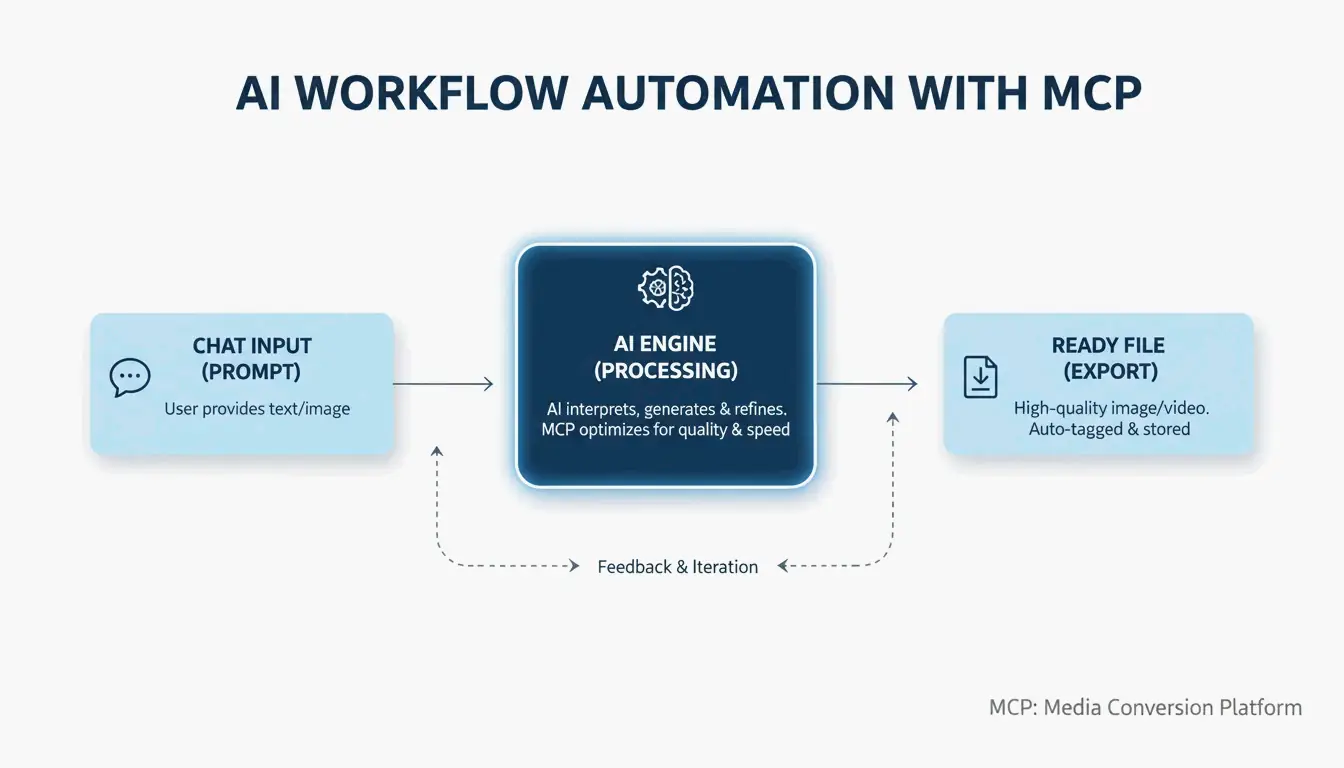
    A simple 3-step AI-driven workflow: User Prompt -> AI Processing -> Optimized Image.

    Conclusion

    Image optimization is a two-part job: resizing dimensions and compressing data. In 2026, using next-gen formats like AVIF and local-processing tools is the best approach for both privacy and SEO. Check your site’s LCP on PageSpeed Insights, then use a bulk tool like Microsoft PowerToys or an AI-driven MCP workflow to replace heavy JPEGs with lean, fast AVIF files.

    FAQ

    How can I resize an image without uploading it to a server for privacy?

    Use browser-based tools that utilize the HTML Canvas API, such as Imgresizer.io. These tools process images locally in your browser’s memory — the file never leaves your device. Alternatively, use offline software like Microsoft PowerToys or Adobe Photoshop to handle all processing on your local hard drive.

    What is the difference between Lossy and Lossless compression for JPEGs?

    Lossy compression permanently removes subtle data to reduce file size significantly. A 75% quality setting is the “sweet spot” for web performance. Lossless compression reduces size without removing any data, allowing full restoration to the original state. Lossless is better for professional archiving but results in larger files.

    What are the recommended dimensions for social media in 2026?

    Platform Content Type Dimensions Notes
    Instagram Square posts 1080x1080px Standard feed
    Instagram Portrait posts 1080x1350px Maximum engagement
    Facebook Cover photos 820x312px Desktop and mobile
    LinkedIn Company pages 1128x191px Banner format

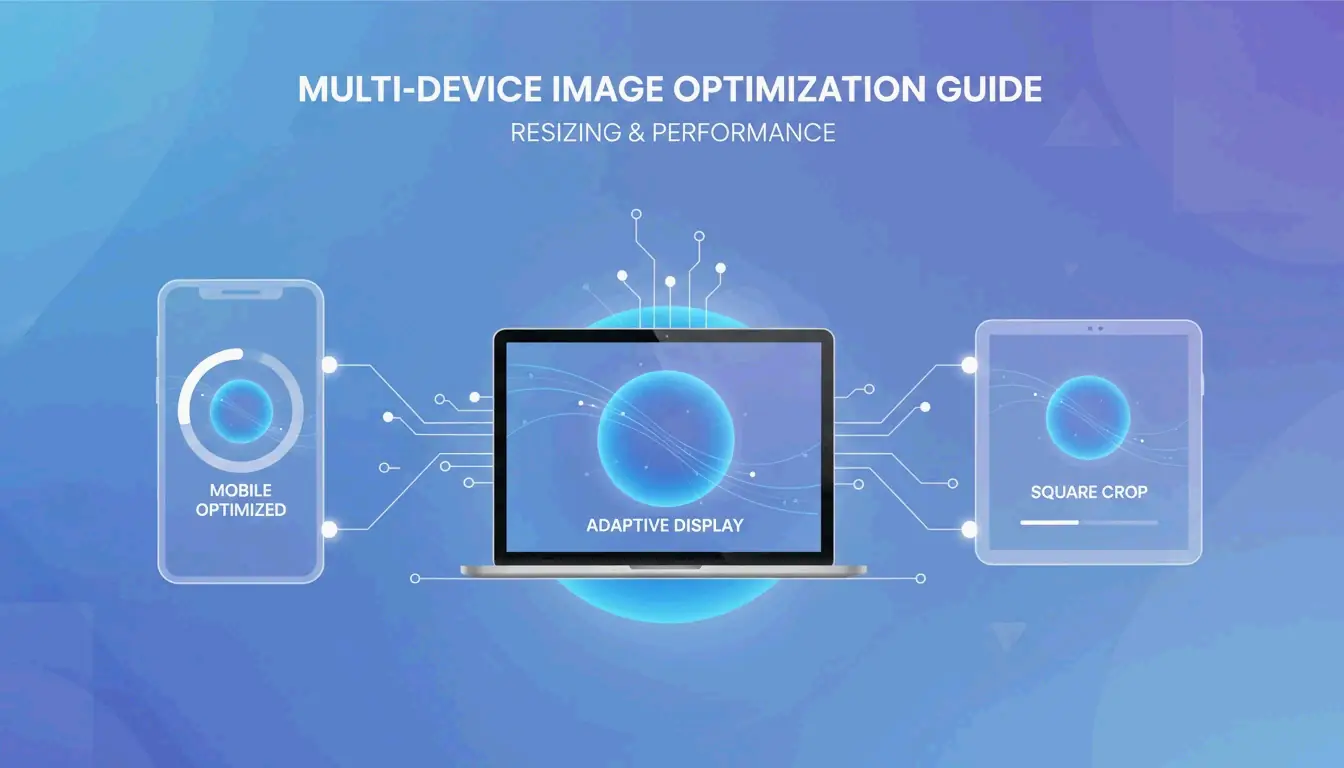
    For high-DPI or Retina displays, export at 2x these dimensions (e.g., 2160x2160px for Instagram square) to ensure sharpness on modern mobile screens.
  • How to Change Photos Size Fast – 2026 Guide for Web, iOS, and Android

    How to Change Photos Size Fast – 2026 Guide for Web, iOS, and Android

    Changing photos size in 2026 is fastest with free web-based tools like BIRME or Img2Go for bulk processing, or native tools like the updated iOS “Preview” and Android “Google Photos.” Upload your image, set target pixels or percentage, lock the aspect ratio, and download the optimized file.

    Quick Ways to Change Photos Size Without Quality Loss

    When you need to change photos size, first decide between Pixels vs. Percentage:

    Method Best For Example
    Resize by pixels Exact dimensions for web forms, social headers Set width to 1080px
    Scale by percentage Quick proportional shrinking of large files Reduce to 50%

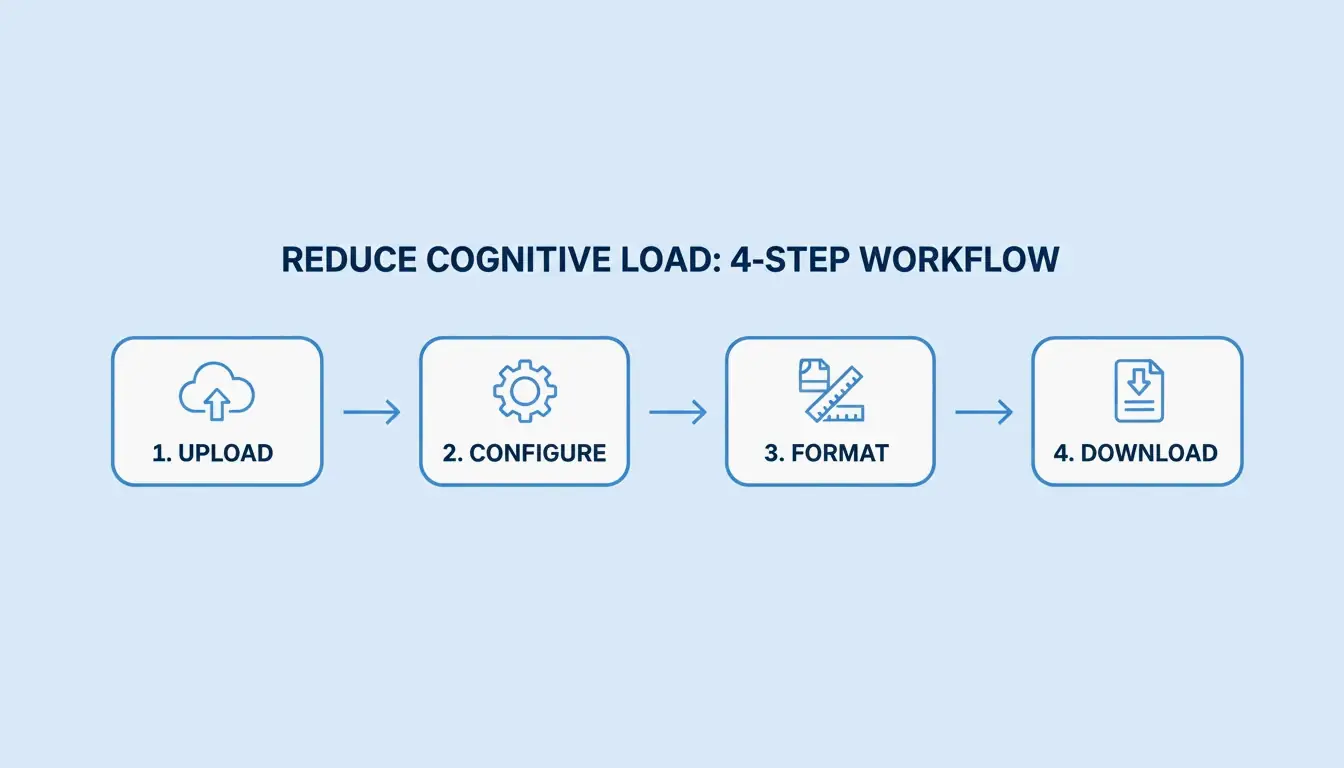
    Standard 4-step resizing process:

    Step Action Detail
    1. Upload Select source file JPG, PNG, WebP, or AVIF
    2. Define Constraints Enter width/height or scale Lock aspect ratio
    3. Format Selection Choose output format WebP for better compression
    4. Download Save optimized file Check file size meets target

    Simple 4-step resizing workflow

    BIRME recommends an 80% quality balance as the “golden rule” for web optimization. This setting cuts file size significantly while maintaining visual quality that helps pages load faster on mobile devices.

    Why Maintaining Aspect Ratio is Non-Negotiable

    Locking the Aspect Ratio ensures width and height adjust proportionally. Without this lock, images appear “squashed” or stretched. Modern tools like Toolnox include an aspect ratio lock by default.

    How to Batch Resize Multiple Images Efficiently

    Batch Resize / Bulk Resizing tools handle large volumes efficiently. BIRME serves over 50,000 monthly users (2026) and processes hundreds of images at once with a single rule set — essential for online stores and professional portfolios.

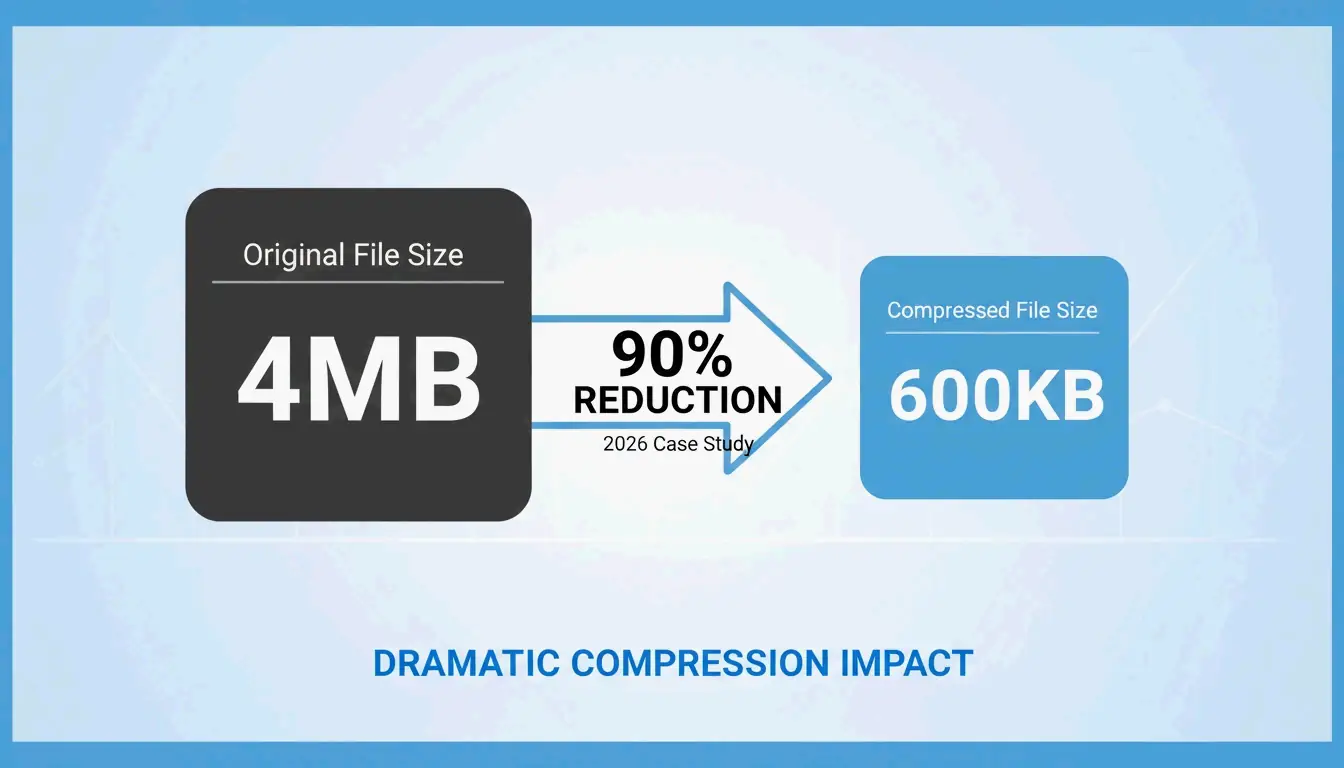
    Compression alongside resizing manages File Size (KB/MB) effectively. In a 2026 case study, users of Photo and Picture Resizer achieved a 90% file size reduction, shrinking 4MB high-res photos to approximately 400KB — well under the 5MB attachment limits of most email services.

    Metric Before After
    File size 4MB ~400KB
    Reduction — 90%
    Email-compatible No (over 5MB combined) Yes

    File size reduction comparison: 4MB vs 400KB

    Native 2026 Methods: Resizing on iOS and Android

    Mobile devices now handle resizing without extra apps:

    iOS 2026 Updates:
    – The iOS Preview app (built into Files) supports direct resizing
    – Select an image in Files, tap “Quick Actions,” and pick dimensions
    – No need to email photos to yourself to trigger size prompts

    Android 2026 Updates:
    – Google Photos uses AI for image size management
    – “AI Enhance” and “Auto Frame” help recompose shots
    – Always choose “Save as copy” to preserve originals

    Manage your EXIF Data carefully. Apps like Image Size — Photo Resizer let you keep or remove metadata like GPS location and camera settings to protect your privacy.

    Does Google Photos Preserve Quality?

    Google Photos uses smart compression to maintain visual quality. Key behavior:

    • Save overwrites the original file
    • Save as copy creates a new file alongside the original
    • The “AI Enhance” feature (US availability, 2026) suggests multiple resized versions so you can pick the clearest one

    2026 Image Dimension Cheat Sheet for Social and E-Commerce

    Platform Content Type Dimensions Aspect Ratio
    Amazon/eBay Product photos 2000x2000px 1:1 (square)
    Instagram Feed posts 1080x1080px 1:1 (square)
    Instagram Portrait posts 1080x1350px 4:5
    TikTok/Instagram Reels 1080x1920px 9:16 (vertical)
    Facebook Cover photo 820x312px 205:78
    LinkedIn Company page 1128x191px ~6:1
    YouTube Banner 2048x1152px 16:9

    Smart Cropping / Auto Focal Point technology uses “smartcrop” libraries to identify the most important parts of a photo — faces, textures, key subjects — and keeps them centered while trimming less important edges.

    AI Upscaling vs. Traditional Resizing: When to Use What

    Method Direction Quality Use Case
    Traditional resizing Downscale only High Web optimization, thumbnails
    Traditional resizing Upscale Low (pixelated) Avoid
    AI Super-resolution Upscale High (generative fill) Enlarging small images
    AI Uncrop/Generative Fill Expand borders High (invented data) Changing aspect ratio, extending scenes

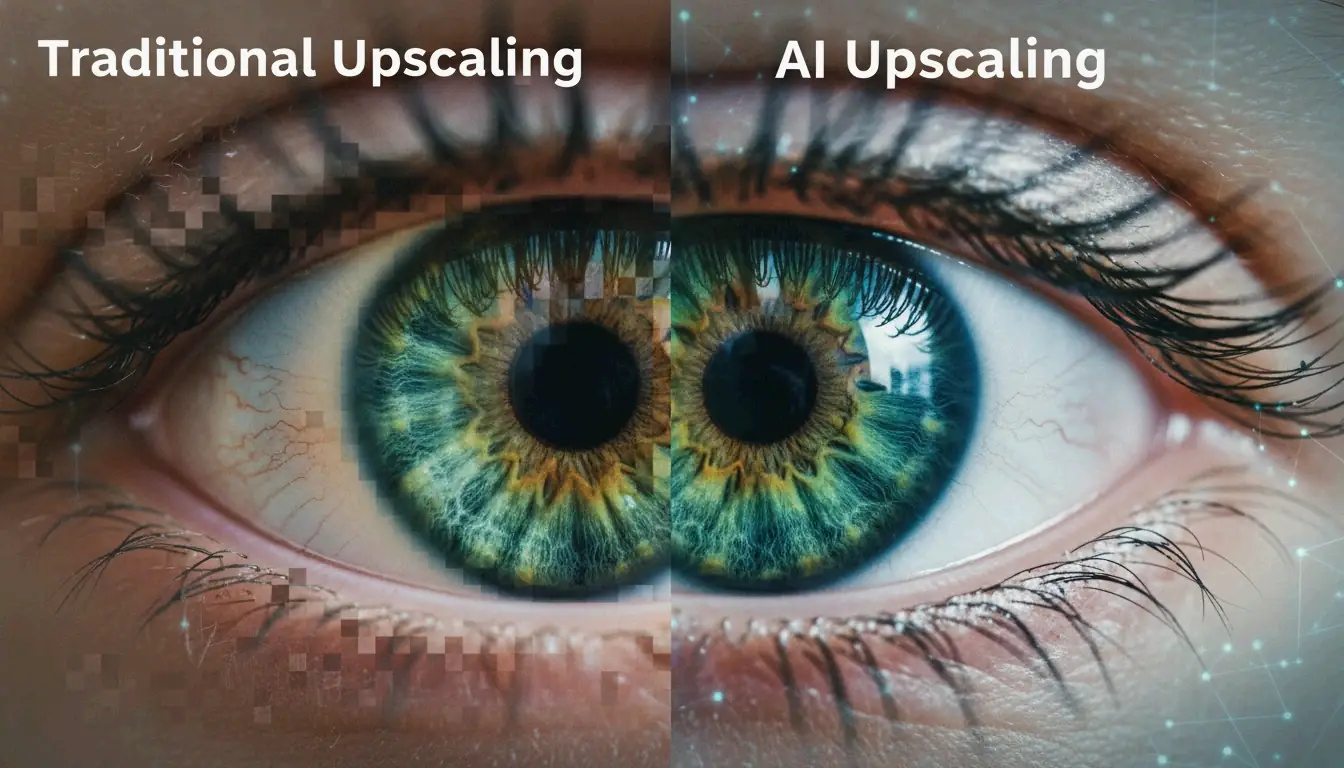
    Standard resizing cannot create new image data — it only stretches existing pixels, producing “interpolation artifacts.” The 2026 industry standard for enlarging images is Generative Fill and AI Uncrop, which fill in new data to expand borders or boost resolution.

    The BIRME Developer advises using an AI “superpixel” tool when photos look blurry after enlargement. Tools like Airbrush can transform a portrait into a wide landscape by generating a realistic matching background.

    Visualizing AI generative fill vs pixel stretching

    Conclusion

    Changing photo size in 2026 comes down to three principles: maintaining the correct aspect ratio, using modern formats like WebP or AVIF, and picking the right tool for your device. Whether using iOS Preview features, Google Photos AI tools, or bulk web processors like BIRME, the goal is lighter files without sacrificing visual quality.

    For web developers, the 80% quality rule keeps sites fast. For mobile users, 2026 native updates make space-saving possible without extra apps. By matching dimensions to current platform standards, content stays sharp and professional on every screen.

    FAQ

    How do I resize photos on iPhone without installing a third-party app?

    In 2026, use the built-in Files app. Open the app, find your image, long-press it, and select “Quick Actions,” then “Resize.” Choose from Small, Medium, or Large presets, or enter custom pixel dimensions. The Shortcuts app also supports creating an automated resizing tool for your entire Photos library.

    What is the recommended image quality (JPG/WebP) for fast website loading?

    For most websites, 80% quality offers the best balance between visual fidelity and file size. Use WebP or AVIF formats for better compression ratios. Target under 200KB for large hero images and under 30KB for small thumbnails to keep your site fast and mobile-friendly.

    Why do my photos look pixelated or blurry after I increase their size?

    Standard resizing cannot create new image data — it only stretches existing pixels, producing “interpolation artifacts.” This is most noticeable when enlarging beyond the original dimensions. To enlarge images without losing clarity, use AI Super-resolution or upscaling tools that employ generative AI to fill in missing details.

  • 7 Best Speed Player iOS Apps in 2026: Control Playback Like a Pro

    7 Best Speed Player iOS Apps in 2026: Control Playback Like a Pro

    The top Speed Player iOS options in 2026 include VLC for Mobile for its universal format support, KMPlayer for high-quality 4K UHD control, and Music Speed Changer for independent pitch adjustment. Whether you need 0.1x slow-motion or 4.0x fast-forward, these apps deliver reliable performance for iPhone and iPad users.

    How to Choose the Best Speed Player iOS App: Evaluation Criteria

    Selecting a quality media player in 2026 involves more than checking for a play button. The most effective playback speed control tools handle modern high-bitrate files without lag and offer a wide speed range — ideally from 0.1x for frame-by-frame analysis to 4.0x for rapid content review — while keeping audio synchronized.

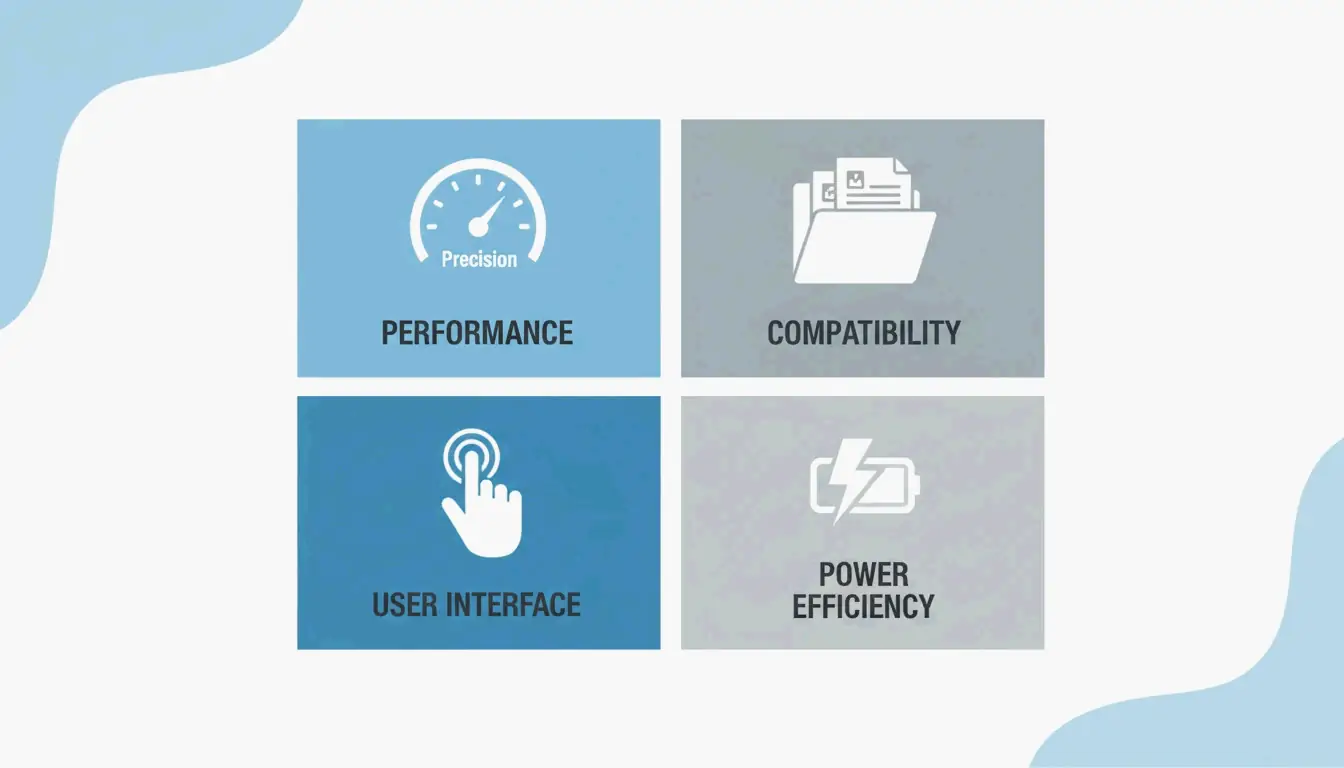
    The evaluation focuses on four factors:

    • Speed Range and Precision: Can you adjust in fine increments, such as 0.01x or 0.05x steps?
    • Format Compatibility: Does it natively support MKV, MP4, AVI, and MOV without conversion?
    • Interface Efficiency: Are there gesture controls like long-press for 2x speed or swipe for volume?
    • Hardware Optimization: Does the app leverage iOS hardware acceleration so 4K playback does not drain the battery?

    A clean comparison of the four evaluation criteria using simple icons.

    The Importance of Precision Playback in 2026

    Precise playback control has become essential for a range of professionals. Developers reviewing screen recordings, students navigating three-hour lectures, and sports coaches analyzing 240fps footage all benefit from the ability to scrub through video with millisecond accuracy.

    Top Picks: The Best iOS Video Players for Speed Control

    VLC for Mobile: Universal Format King

    VLC for Mobile remains the go-to choice for playing virtually any file type. It is free, open-source, and syncs files from Google Drive, Dropbox, and iCloud. As noted by Wondershare UniConverter, VLC is a top recommendation for opening MKV, AVI, and FLV files without conversion. Its speed slider is stable, and it maintains natural audio pitch even at high playback speeds.

    Feature Detail
    Price Free
    Speed Range 0.25x to 4.0x
    Format Support MKV, AVI, FLV, MP4, MOV, and more
    Cloud Sync Google Drive, Dropbox, iCloud
    Audio Pitch Maintained at high speeds

    KMPlayer: The UHD and 4K Specialist

    For high-definition content, KMPlayer excels at 4K, UHD, and 3D playback. The Softonic Editorial Team highlights KMPlayer’s support for codecs that the standard iOS player cannot handle. It also includes “KMP Connect” for streaming videos from a PC to an iPhone. The app is optimized for the latest iPad Pro and iPhone displays, keeping 4K video sharp even at elevated playback speeds.

    MX Player: Mastering Gesture Controls

    MX Player is known for its gesture-based interface. Playback speed, volume, and brightness can be adjusted through swipes and taps. A long-press jumps directly to 2x speed — a feature PhoneArena notes was a staple in third-party players before native apps adopted it. This makes MX Player an effective one-handed option for on-the-go viewing.

    Infuse: The Cinephile’s Speed Player

    Infuse provides a premium, polished interface for personal video libraries. It offers strong subtitle support and cloud integration. Infuse is designed for users with large collections of MKV and MOV files who still want the flexibility to speed through a slow documentary or slow down a foreign film to catch every line of dialogue.

    According to the App Store listing for Video Player – All in One, which holds a 4.6-star rating from over 7,200 users, the market now expects “all-in-one” features like Picture-in-Picture (PiP) and Wi-Fi sharing alongside speed controls.

    Gesture Cheat Sheet: Triggering Speed Changes Instantly

    Gesture Action Available In
    Long-press Instant 2x speed Video Player – All in One, MX Player
    Speed slider 0.25x to 4.0x range VLC
    0.05x increments Fine-grained control VideoSpeed
    A/B Loop Repeat a section at set speed VLC, Infuse

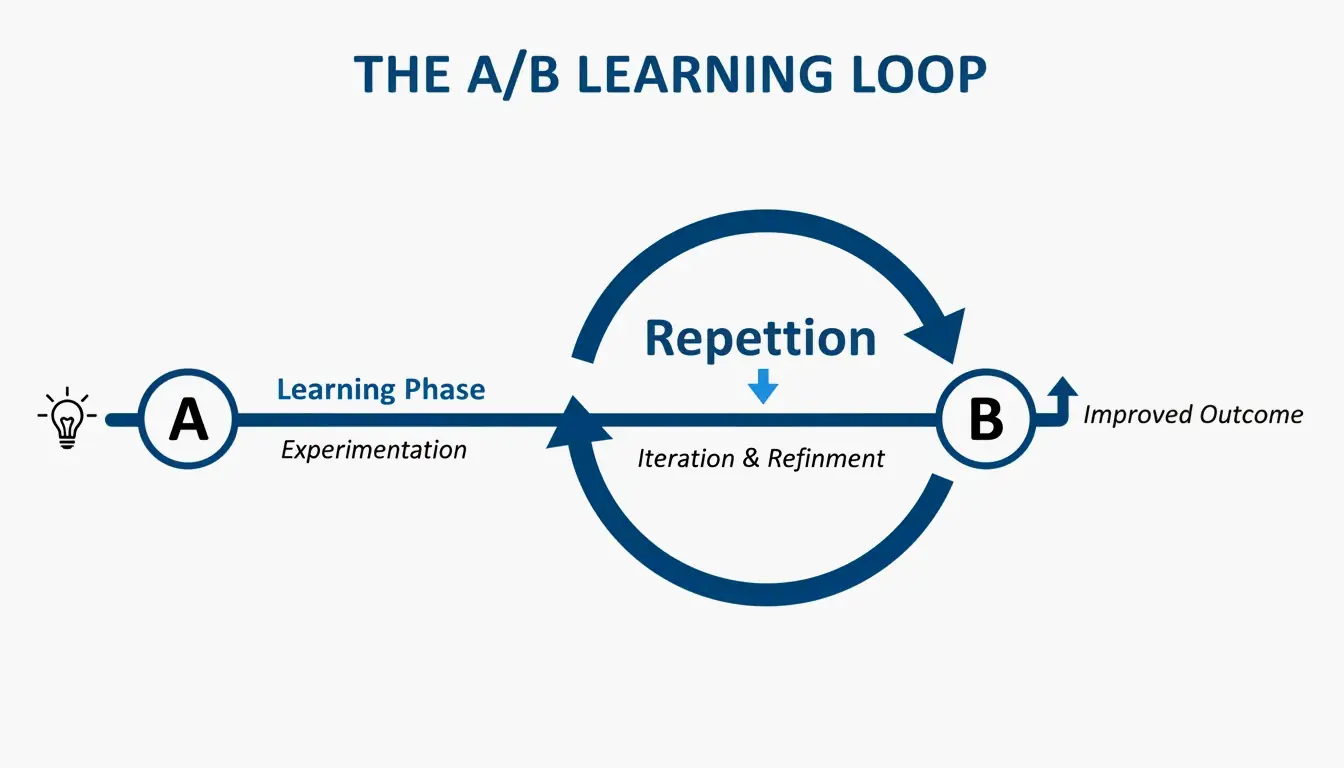
    The A/B Loop is particularly valuable for learning. You set a start point and an end point, and the player repeats that section. Musicians and dancers use this to practice specific passages at 0.5x speed before attempting them at full tempo.

    A minimalist visualization of the A/B Loop concept for learning.

    Specialized Use Cases: Musicians and Productivity

    Music Speed Changer: Independent Pitch and Tempo

    Standard players often distort audio when speed changes. Music Speed Changer solves this by decoupling tempo and pitch adjustment:

    • A guitarist can slow a solo to 0.25x to study every note while the song remains in its original key.
    • A singer can transpose the key without changing the playback speed at all.

    RSVP Technology for Productivity

    RSVP (Rapid Serial Visual Presentation) technology displays words one at a time in a fixed screen position, eliminating the need for eye movement. Apps like RSVP Reader enable reading speeds of 500 to 1,000 words per minute. This is effective for reviewing transcripts or scripts while traveling.

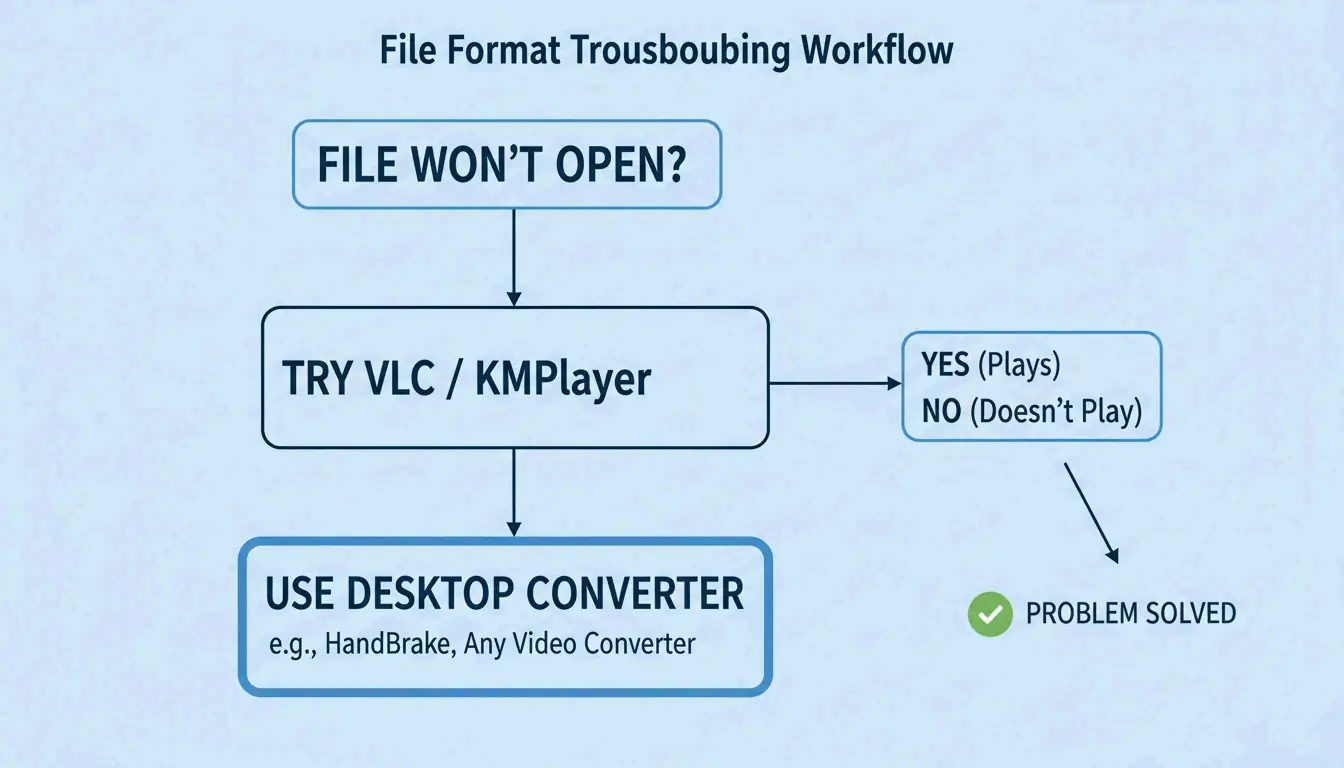
    How to Play Incompatible Formats on Your iPhone

    Even in 2026, some files will not open in the native iOS Photos app. Two main solutions exist:

    Solution How It Works Best For
    Third-party player Apps like VLC and KMPlayer include built-in codecs for MKV, AVI, and MOV Quick playback without conversion
    Desktop conversion Wondershare UniConverter converts 1,000+ formats to iPhone-ready MP4 Large libraries of 4K MKV files

    Once files are ready, transfer them via AirDrop, Google Drive, or a USB-C cable.

    A 3-step decision flow for handling incompatible video files.

    Conclusion

    The right Speed Player iOS app depends on specific needs: VLC for general format support, KMPlayer for high-definition video, and Music Speed Changer for audio precision. For most users, VLC for Mobile is the strongest free all-around option. For musicians or dancers who need undistorted audio at variable speeds, Music Speed Changer is worth the download.

    FAQ

    Can I change the playback speed of videos in the native iOS Photos app?

    The native iOS Photos app supports speed adjustments only for Slo-mo videos captured directly on the iPhone. For standard recorded or imported videos, there is no speed toggle. You need an editor like iMovie or a dedicated third-party player such as VLC.

    Which iPhone video player supports 4K Ultra HD without draining the battery?

    KMPlayer is highly optimized for 4K and UHD playback, using hardware acceleration to reduce CPU load. Infuse is another strong premium option with efficient decoding designed to preserve battery life during extended high-definition viewing sessions.

    Is there an app that changes audio pitch independently of playback speed?

    Yes. Music Speed Changer is specifically designed for this purpose. It allows pitch shifting of up to plus or minus 12 semitones while keeping playback speed constant, making it an effective tool for musicians who need to practice in different keys without altering tempo.

    What is A/B Loop and which iOS apps support it?

    A/B Loop lets you mark two points in a video (Point A and Point B) and have the player automatically repeat that segment. This feature is available in VLC and Infuse, and it is commonly used by musicians, dancers, and language learners for focused practice at reduced speeds.

  • Best Change Image Size App Options for 2026: Resize Pixels and KB Instantly

    Best Change Image Size App Options for 2026: Resize Pixels and KB Instantly

    To change image size in 2026, the most reliable methods are using the “Image Size” app on iOS/Android for pixel-perfect adjustments or BIRME.net for bulk processing. Just upload your photo, set your new dimensions while keeping the aspect ratio locked, and save. For official document uploads, aim for 96-150 DPI to keep file sizes under 2MB.

    How to Use a Change Image Size App: The 3-Step Framework

    Choosing the right change image size app usually comes down to what device you are using and how many photos you have. If you are on your phone, dedicated apps like “Image Size — Photo Resizer” (iOS and Android) give you exact control over pixels, millimeters, or inches. If you are on a computer, browser-based tools like BIRME are often faster because they process images locally, which also keeps your data private.

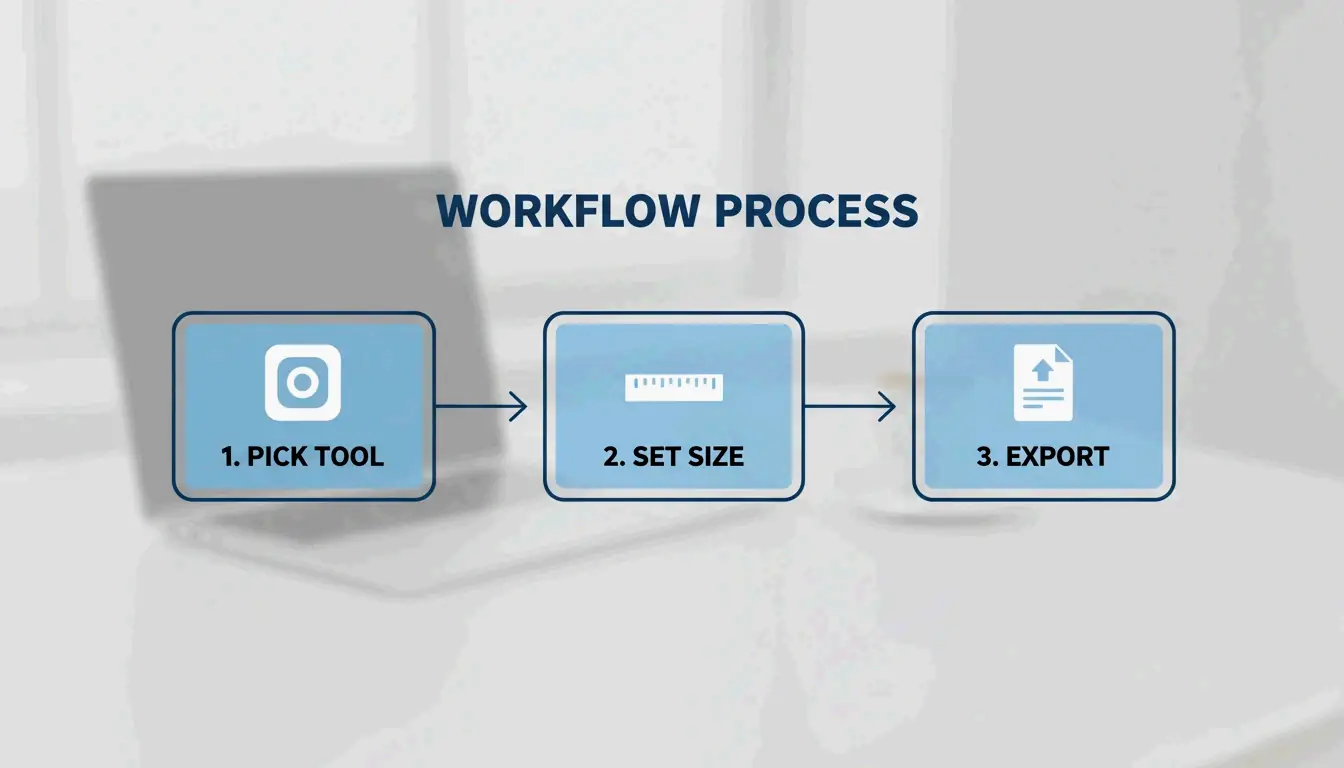
    The process follows these three steps:

    1. Pick Your Tool: Use a mobile app for a quick single edit, or a web-based batch tool if you have dozens of photos to resize at once.
    2. Set Your Dimensions: Type in the width or height you need. Make sure the aspect ratio — often shown as a small chain link icon — is locked. This prevents your image from looking stretched or “squashed.”
    3. Choose the Format: Pick your output file type. JPEG, JPG, and PNG are still the standard go-tos, but WebP is becoming the favorite for websites because it makes files much smaller without losing quality.

    Simple 3-step process: Tool to Dimensions to Format

    The developer of BIRME points out that finding the right balance between clarity and file size is key. An 80% quality setting is usually the “sweet spot” for web use; you rarely need to go above 90% unless you need perfect high-fidelity prints.

    Maintaining Aspect Ratio to Prevent Distortion

    To keep your photos looking right, always lock the aspect ratio before you touch the dimensions. In the “Image Size” app, tapping the chain icon between the width and height boxes ensures that if you change one number, the other adjusts automatically. If you skip this, you might end up with distorted images — a frequent headache noted by the creator of BIRME when users upload “squeezed” photos to WordPress sites.

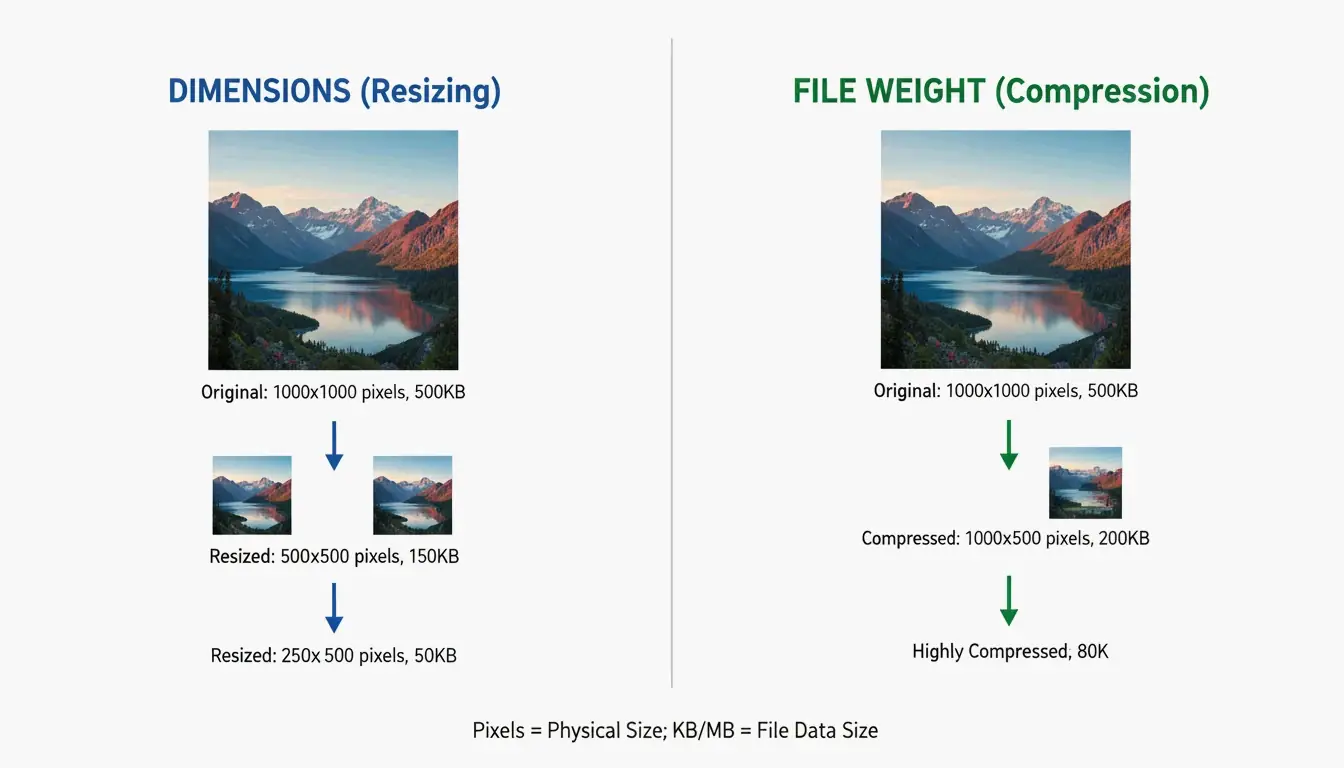
    The Decision Matrix: Resize Pixels vs. Compress KB/MB

    Knowing whether to change the physical dimensions (pixels) or the file weight (KB/MB) is important for meeting specific upload rules.

    Your Goal Action Example
    Fit social media layout Resize pixels Set Instagram post to 1080x1080px
    Meet email attachment limit Compress KB/MB Shrink 5MB photo to under 1MB
    Government portal upload Both combined 96 DPI + target 50KB JPG
    Website hero banner Resize + compress 1200px wide at 80% quality

    Side-by-side comparison: Dimension Resizing vs. File Compression

    Your Resolution (DPI) also affects the final file size. According to Canada IRCC, official document uploads often have a 2MB limit. They suggest scanning documents at a lower resolution, like 96 DPI or 150 DPI. This keeps the file small enough to upload while ensuring the text stays clear and readable.

    Why Batch Processing is Essential for Efficiency

    When you have hundreds of images to deal with, Batch Processing is a lifesaver. Tools like BIRME (which handles over 50,000 users a month according to BIRME.net) let you drop an entire folder of photos into your browser and apply the same settings to all of them at once.

    Modern batch tools now use Smart Cropping (or Auto Focal detection). This technology uses libraries like “smartcrop” to scan an image for important details like faces, lines, or curves. It identifies the “focal point” so that when the image is resized or cropped to a new shape, the most important part of the photo stays centered and does not get cut off.

    No-App Methods: Resizing on iOS 26 and Android Native Tools

    By 2026, you can often resize images without downloading a separate change image size app by using the tools already on your phone.

    Platform Native Method Steps
    iOS 26 Shortcuts app Create “Resize Image” shortcut in Share menu
    iOS (classic) Mail app trick Email photo to yourself, choose Small/Medium/Large
    Android Gallery + Google Photos Use built-in resize in share settings
    Windows Paint / Photos app Resize > Set percentage or pixels

    Android’s native Gallery and the iOS “Preview” tool also offer basic resizing. However, many people still prefer dedicated apps because native tools sometimes lack the ability to set a specific KB target or handle 50 photos at once.

    Next-Gen Formats: Support for WebP and AVIF

    The way we save images is changing. While JPEG, JPG, and PNG work everywhere, WebP and AVIF are the new standards for high performance.

    Format Compression Browser Support Best For
    JPEG Lossy, 80% quality standard Universal General photos
    PNG Lossless Universal Logos, transparency
    WebP Lossy/Lossless 97%+ browsers Web optimization
    AVIF Lossy, 50% smaller than JPEG 93%+ browsers Next-gen web delivery

    AVIF is particularly impressive, offering much smaller file sizes than JPEG while looking just as sharp. Most top-rated resizing apps in 2026 now let you convert old files into these next-gen formats to help websites load faster and save space on your phone.

    Conclusion

    The best change image size app for you depends on what you are trying to do: do you need exact pixel dimensions, bulk processing, or a tiny file for a document upload? For a quick edit on your phone, a dedicated tool like the “Image Size” app offers the best precision for pixels and aspect ratio. For professional web work or large batches, a tool like BIRME.net is the most efficient choice — it is fast, keeps your files private, and does not require uploading anything to a server. Just remember to start with your highest-quality original and keep your quality settings around 80% for the best results.

    FAQ

    Why do my photos look pixelated after resizing?

    Pixelation usually happens when you try to “upscale” a small image (making it bigger than it originally was). The software has to “guess” where to put new pixels, which creates a blurry or blocky look. According to BIRME, setting the quality too low — well below 80% — can also ruin the fine details. To avoid this, always try to start with the highest-resolution original file you have.

    Is it safe to use online image resizers for private photos?

    It is safe as long as you use “client-side” or “local” tools like BIRME. On these sites, your images never actually leave your computer; the resizing happens right inside your browser using JavaScript. You should avoid sites that force you to upload your files to a remote server, especially if you are handling IDs or sensitive documents.

    How can I resize an image on iPhone without downloading a third-party app?

    The easiest way is to use the “Mail” app: email the photo to yourself and choose a smaller size (Small, Medium, or Large) when the prompt appears. You can also use the “Shortcuts” app to build a custom “Resize Image” tool. Another quick trick is to use the “Print” preview — if you pinch out on the print preview screen, you can save that version as a new, often smaller, PDF or image.

  • How to Bulk Resize Photos and Videos in 2026: A Privacy-First Guide

    How to Bulk Resize Photos and Videos in 2026: A Privacy-First Guide

    To bulk resize photos and videos in 2026, the most efficient approach is to use browser-based tools like BIRME or FastTool for images, and local API platforms for video files. Upload your batch, set your dimensions while locking the Aspect Ratio, adjust Compression Quality to 80-90%, and download the optimized results as a ZIP file — all without your data ever leaving your device.

    The 2026 Standard for Bulk Resizing Photos and Videos

    By 2026, media processing has shifted toward a “local-first” approach. Instead of sending private files to a distant server, your computer does the work right inside the browser. This is powered by the Canvas API and HTML5 Canvas, which allow modern browsers to handle heavy image editing at speeds comparable to native software.

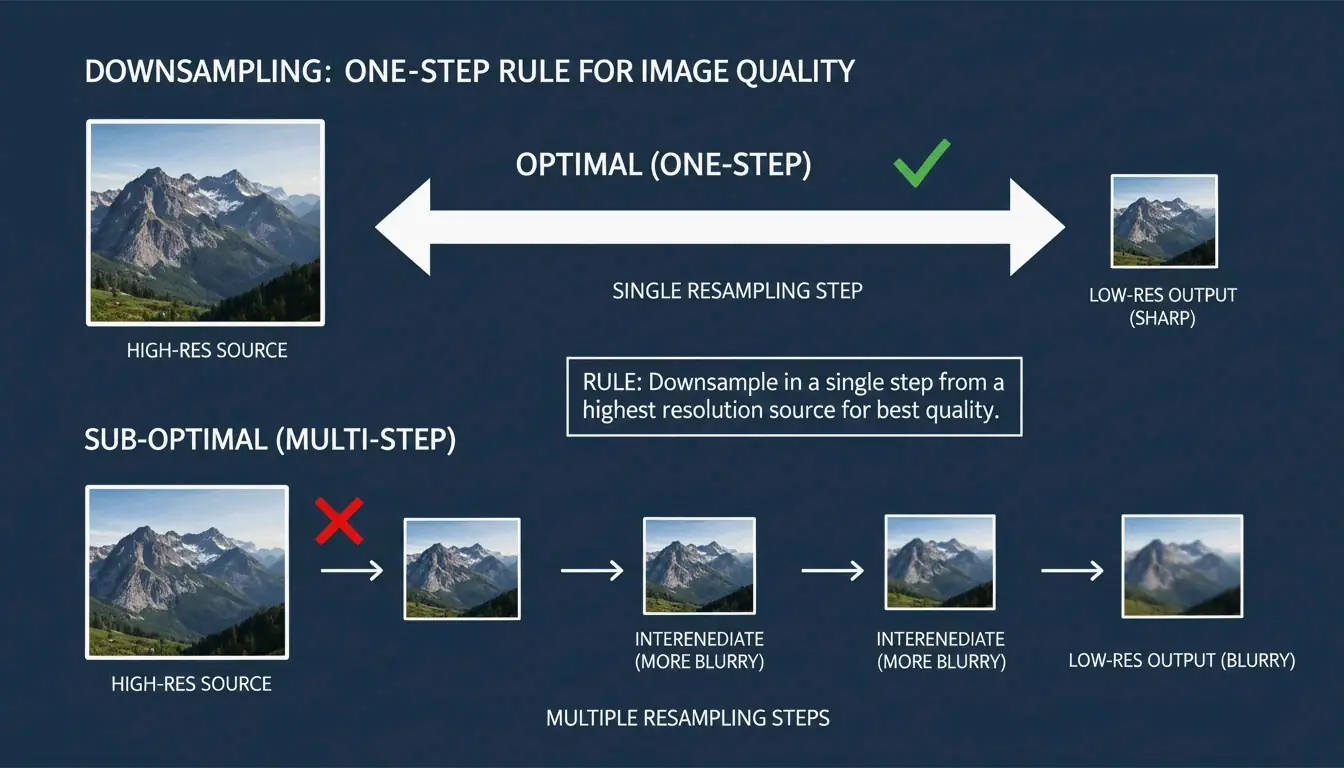
    The FastTool Engineering Team highlights a key rule for keeping images sharp: always downsample in one step. If you need to take a 2048px image down to 512px, doing it in a single step produces a cleaner result than resizing multiple times (e.g., 2048 to 1024 to 512), which often causes “ringing” or blurry artifacts.

    Comparison of single-step vs. multi-step resizing quality

    Step 1: Selecting Your Batch Processing Tool

    Your choice depends on how many files you have and how much you care about privacy.

    Scenario Recommended Tool Why
    Privacy-first, under 100 images BIRME or FastTool Browser-local, files never leave your device
    Large batches (hundreds of high-res files) ConvertFT Server-side C++ engines prevent browser freezes
    Mobile on-the-go editing Native iOS/Android tools No installation required

    Step 2: Defining Constraints to Maintain Aspect Ratio

    Nobody wants “squashed” or stretched photos. Always keep the Aspect Ratio locked. Most tools in 2026 let you set a fixed width (like 1200px) and automatically calculate the correct height. If you are prepping images for a specific shape like a square Instagram post, look for “Smart Cropping” — this feature finds the focal point of the photo so you do not accidentally cut off someone’s head.

    Common Aspect Ratio Settings:

    Platform Ratio Pixel Dimensions
    Instagram Feed (Square) 1:1 1080 x 1080px
    Instagram Reels / TikTok 9:16 1080 x 1920px
    YouTube Thumbnail 16:9 1280 x 720px
    Facebook Cover ~2.7:1 820 x 312px

    Step 3: Instant Local Export

    After you hit go, the browser uses canvas.toBlob to re-encode your media. The standard in 2026 is to export everything as a single ZIP file. This is a clever workaround for browser limits that usually block you from downloading dozens of individual files at once, letting you save your entire library with one click.

    Video vs. Photo: Bridging the Gap in Bulk Workflows

    Batch processing photos is mostly about pixels and dimensions, but video adds another layer: bitrate management. A video’s file size depends more on its bitrate (the amount of data processed per second) than its actual resolution. When resizing videos in bulk, your tool needs to adjust the encoding to match the new size. If it does not, you might end up with a tiny 480p video that still has a massive, unnecessary file size.

    Resolution vs. Bitrate: What Video Resizing Actually Means

    Shrinking a video from 4K to 1080p will not help your website load faster if the bitrate stays the same. Modern apps like Resize Now! let you choose specific Output Formats and aspect ratios (like 9:16 for TikTok) while managing these background settings. Whether you are working with MP4, MOV, or WebM, the goal is to get a consistent resolution that fits where you are posting it.

    Modern Standards: Adopting AVIF and HEVC for 2026

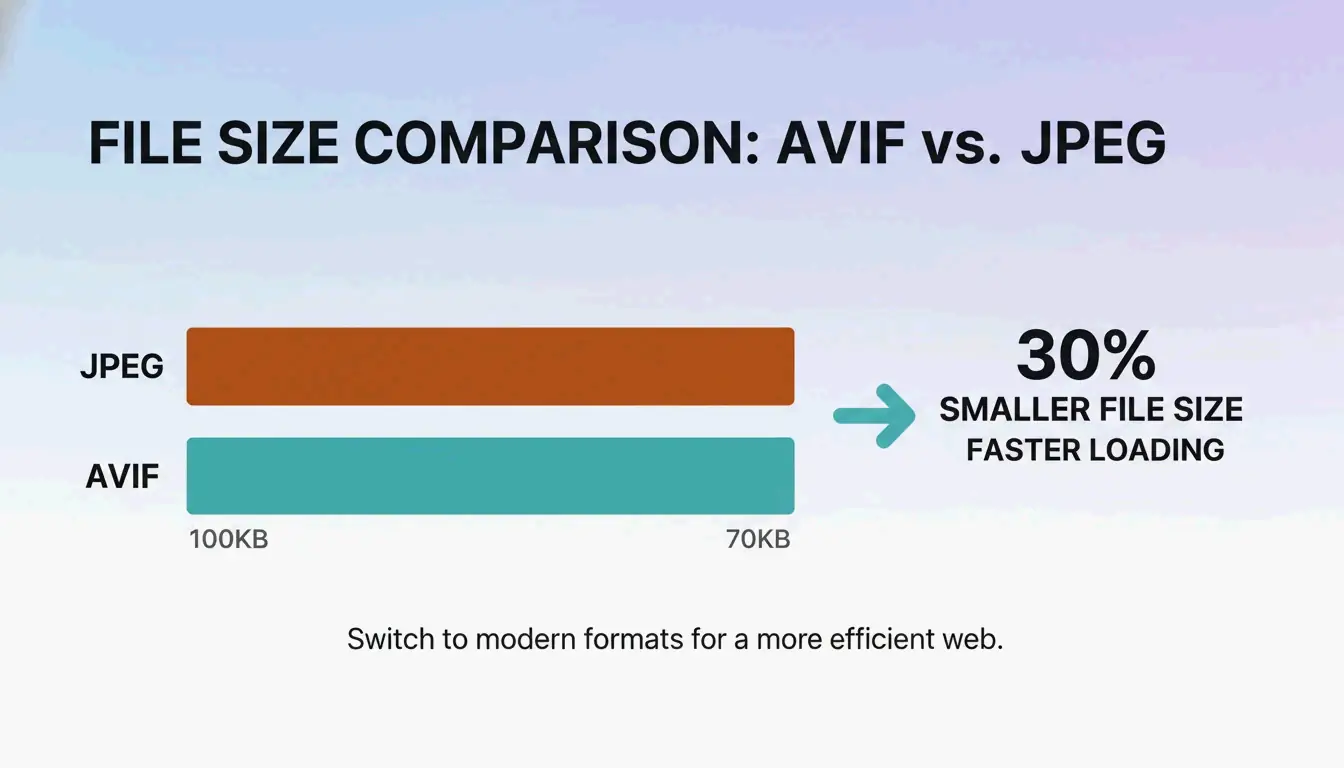
    In 2026, old-school JPEGs are taking a backseat to more efficient formats. FastTool notes that WebP and AVIF formats are usually 25-35% smaller than JPEGs or PNGs of the same quality. When resizing your library, converting to AVIF (for images) or HEVC (for videos) ensures your content loads instantly on the latest phones and high-speed networks.

    Format Type Savings vs JPEG Best Use
    AVIF Image 30-50% Web photos, hero images
    WebP Image 25-35% General web use
    HEVC (H.265) Video 40-50% vs H.264 4K/8K video delivery

    File size comparison between JPEG and AVIF/WebP

    Optimizing Compression Quality without Losing Sharpness

    Finding the “sweet spot” for Compression Quality is the secret to professional-looking files. For most websites, a setting between 80% and 90% is ideal. The BIRME guidelines mention that going above 90% rarely looks better to the human eye, but it makes the file size jump up significantly.

    To keep things crisp when shrinking images, 2026 tools use advanced algorithms like Lanczos and Bicubic Resampling. These algorithms calculate new pixel data in a way that prevents the “soft” or blurry edges you see in cheap editors.

    Compression Quality Reference:

    Quality Setting File Size Impact Visual Difference Best For
    90-100% Very large Imperceptible gain vs 85% Print, archival
    80-90% Moderate Barely noticeable loss Web, e-commerce
    70-80% Small Slight softening on close inspection Thumbnails, mobile
    Below 60% Very small Visible artifacts Avoid for professional use

    Case Study: Shopify Store Speed Optimization

    In one case from FastTool, a clothing store owner had 240 product photos shot at 24 megapixels. By bulk resizing them to 2048px wide at 85% JPEG quality, the store’s load time dropped from 4.8 seconds to just 1.9 seconds. That speed boost led to more sales in the very next quarter.

    Metric Before After Change
    Image dimensions 6000 x 4000px 2048px wide -66% width
    Quality 100% (original) 85% JPEG -15% quality
    Page load time 4.8 seconds 1.9 seconds -60%
    Total image weight ~1.4 GB ~45 MB -97%

    Advanced Features: Focal Point Detection and Metadata

    Handling a mix of portrait and landscape shots in one batch used to be a headache. Modern tools now use Focal Point Detection to fix this.

    Solving the Mixed Orientation Problem

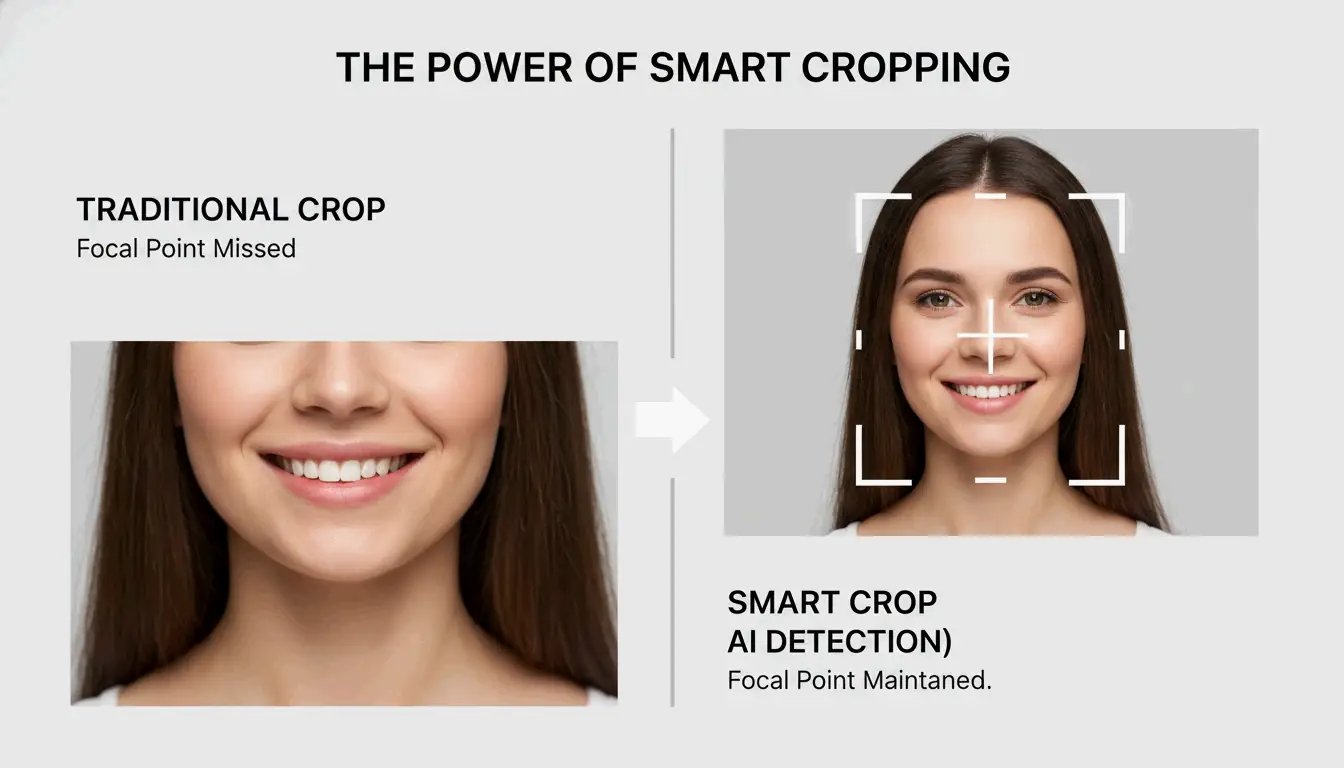
    Instead of just cropping the center of every image — which might cut out the product or a person’s face — 2026 tools use the Smartcrop library. This tech analyzes the image for interesting shapes and lines to figure out the most important part of the photo, then centers the crop there automatically.

    Visual demonstration of Smart Cropping vs. Center Cropping

    Privacy First: Handling EXIF Metadata in 2026

    Every smartphone photo contains EXIF Metadata — essentially a digital fingerprint including your GPS location, the time the photo was taken, and your phone model.

    • When to strip it: For social media or public galleries, removing this data is a smart privacy move.
    • When to keep it: Pro photographers often keep EXIF data to protect their copyright or keep track of their camera settings.

    Modern resizers usually give you a simple toggle to either “Strip Metadata” for privacy or “Preserve EXIF” for professional work.

    Conclusion

    By 2026, bulk resizing has evolved. It is no longer just about changing numbers; it is about balancing privacy, using modern formats like AVIF, and using smart detection to make sure your quality stays high on every screen. By sticking to browser-local processing, you can handle sensitive media without worrying about data leaks on a remote server.

    Action Plan: Start by checking your current files to see which ones are slowing you down. Use a browser-local tool to test a few samples and find your best compression-to-quality ratio (usually 80-85%) before you update your whole library. It is a small step that makes a huge difference for your SEO and your visitors.

    FAQ

    Why do my photos look pixelated after resizing?

    Pixelation usually occurs if you attempt to upscale an image beyond its original dimensions. It can also be caused by using incorrect resampling algorithms. For the best results, always downsize rather than enlarge, and ensure your tool uses Lanczos or Bicubic filtering rather than simple linear scaling.

    Is it safe to upload sensitive client photos to an online resizer?

    It depends on the tool’s architecture. To ensure maximum safety, look for “Serverless” or “Local-only” tools (like BIRME or FastTool) that use the Canvas API. These tools process images entirely within your browser, meaning your files never leave your device and are never stored on a remote server.

  • Best Photo Resize Tools and Methods for 2026: Maintain Quality with AI and Bulk Processing

    Best Photo Resize Tools and Methods for 2026: Maintain Quality with AI and Bulk Processing

    To achieve the best photo resize results in 2026, you need tools that balance speed and image integrity. Use Birme for fast, privacy-focused bulk resizing in your browser, Overchat AI to expand aspect ratios without cropping, and iLoveIMG for cloud-connected batch processing. For mobile users, the Image Size app provides precise pixel-level control.

    How to Choose the Best Photo Resize Method for Your Needs

    The right resizing method comes down to three factors: speed, final image quality, and data privacy. In 2026, professional workflows demand precise Pixel Dimensions (Width/Height) optimized for high-density displays, making accuracy more important than ever.

    Traditional resizing remains the standard for making images smaller — converting a 4000px photo into an 800px version for a blog post, for example. This approach is fast and preserves sharpness as the image shrinks. However, for enlarging or changing shape, standard tools often fall short. Data from Birme, which serves over 50,000 users monthly, shows that Privacy/Browser-based Processing is a priority for modern creators. Client-side JavaScript ensures sensitive photos never leave your device.

    The Decision Matrix: Traditional Pixel Control vs. AI Expansion

    Approach Best For Method Trade-off
    Traditional Resizing Specific resolution targets Pixel interpolation Cannot add new content
    AI Expansion Aspect ratio changes Generative fill for new pixels Requires AI model processing

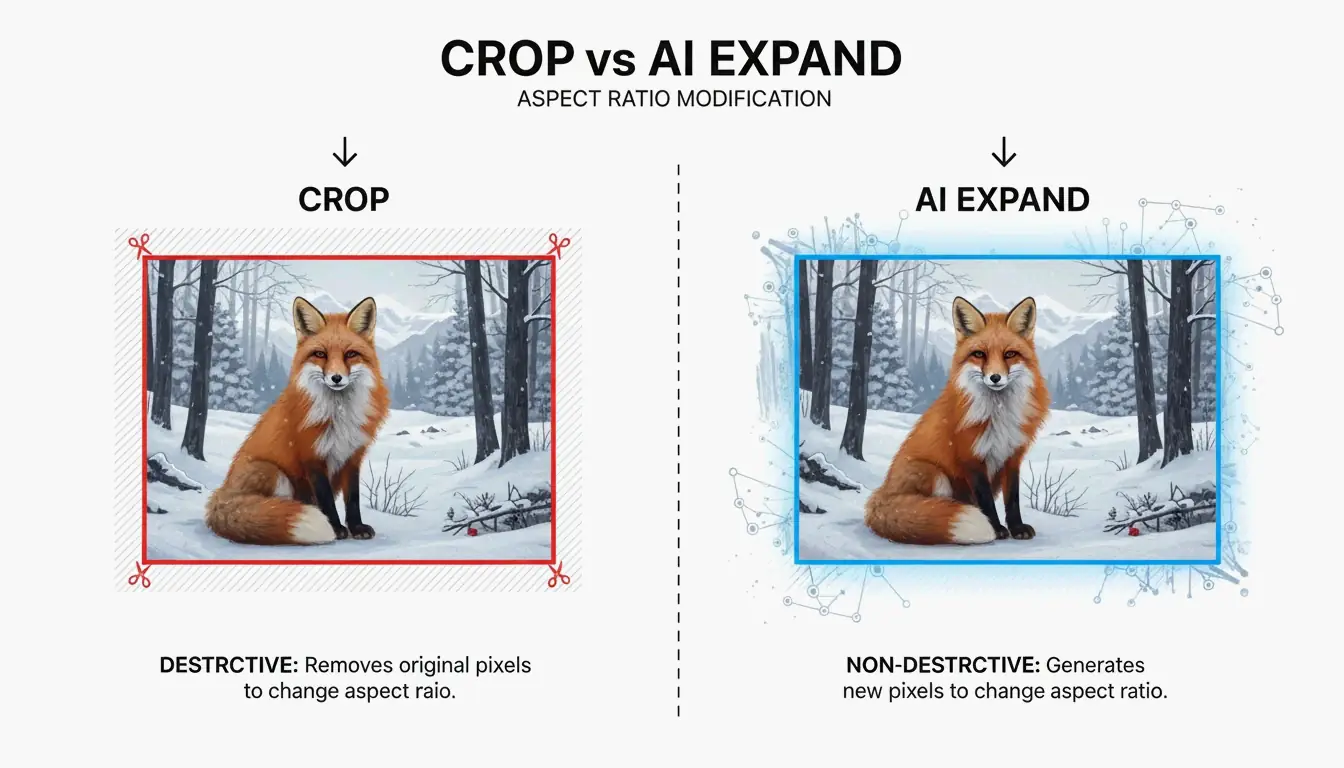
    Comparison between traditional cropping vs. AI generative expansion

    Traditional tools like ImageResizer.com work well when you have a specific resolution in mind and do not need to alter the image content. AI expansion is superior when the target aspect ratio differs from the original. While traditional cropping simply removes edges, AI generative fill creates new pixels to extend the scene, preserving the main subject.

    Best Photo Resize Tools for Bulk Processing and Privacy

    For content-heavy workflows, Bulk/Batch Resizing is essential. Processing hundreds of photos individually wastes time and introduces inconsistency. Tools like Birme let you set a single aspect ratio and apply it to an entire gallery at once.

    For batch work, format selection directly impacts website speed:

    Format Compression Quality Browser Support (2026)
    JPEG Lossy Good 100%
    PNG Lossless Excellent 100%
    WebP Both Excellent ~97%
    AVIF Both Excellent ~93%

    Birme recommends an 80%-90% quality balance for WebP or JPEG exports. This range represents the sweet spot where photos look professional but file sizes remain small enough for fast page loads.

    How to Batch Resize Without Losing Quality

    To maintain image sharpness, always resize downward from a high-resolution original. If upscaling is unavoidable, use a tool with a “High Quality Resize Method” or AI engine to prevent blurriness and pixelation. For cloud-connected workflows, iLoveIMG integrates directly with Google Drive and Dropbox, enabling pull-resize-save operations in a single flow.

    AI Aspect Ratio Expansion: Resizing Beyond the Frame

    The most significant advancement in 2026 is the AI Image Resizer/Extender, which enables “uncropping.” Rather than cutting off edges, AI models reconstruct the scene to fit new dimensions. This is ideal for converting a vertical 9:16 smartphone photo into a wide 16:9 cinematic header.

    Andrew Dyuzhov, a technology writer at AI Hub, explains: “AI image resizers differ from traditional ones by generating new content to extend images, rather than cropping or stretching — allowing aspect ratio changes without losing any original content.” Modern tools like Overchat AI, powered by the Seedream 5.0 model, reconstruct backgrounds with accuracy that makes the boundary between original and AI-generated content virtually indistinguishable.

    The “Uncrop” Revolution: How AI Fills the Gaps

    The “Uncrop” process combines Smart Cropping with generative fill to identify the focal point of a photo. When converting a horizontal image to vertical, traditional cropping might discard 80% of the scene. AI avoids this loss by “imagining” what should exist outside the frame based on existing textures and lighting. The Seedream 5.0 engine supports over 10 different aspect ratios, enabling one photo to be resized for Instagram, LinkedIn, and ultrawide monitors without compromising composition.

    2026 Social Media Cheat Sheet: Correct Image Sizes

    Social media platforms enforce strict dimension requirements. Non-compliant images are auto-compressed, often resulting in visible quality degradation.

    Platform Format Dimensions Ratio
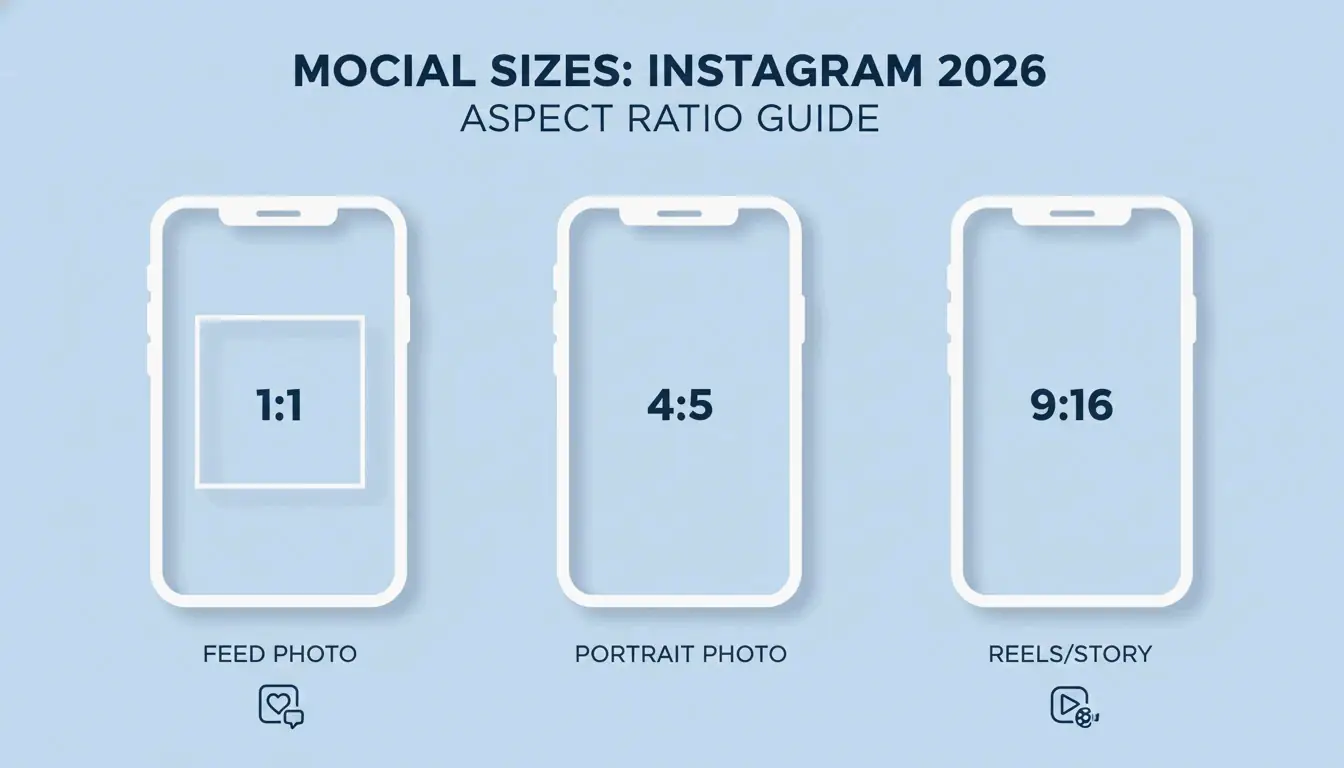
    Instagram Feed (Portrait) Post 1080 x 1350 px 4:5
    Instagram Feed (Square) Post 1080 x 1080 px 1:1
    Instagram Stories & Reels Story/Reel 1080 x 1920 px 9:16
    LinkedIn Banners Banner 1128 x 191 px Custom

    Visual guide to 2026 social media aspect ratios

    With AVIF support becoming standard for web optimization in 2026, many professionals use it for social media content to achieve better color fidelity at smaller file sizes. For print, DPI (Dots Per Inch) is the critical metric: 300 DPI for high-quality prints, 72-96 DPI for screen display.

    Conclusion

    The best resizing strategy in 2026 combines two approaches: traditional local tools for fast bulk work, and AI tools for creative layout changes. For daily social media posts or private photos, a browser-based tool like Birme processes images on your device with full privacy. For professional work requiring aspect ratio changes without edge loss, AI extenders like Overchat AI deliver superior results. Selecting the right tool for each task — whether you need precise pixel control or AI expansion — ensures your visuals look professional across every platform.

    FAQ

    What is the difference between resizing and cropping?

    Resizing changes the total pixel count or physical scale of the image, making the file smaller or larger while preserving the entire scene. Cropping removes outer portions of the image to change the focus or aspect ratio. Resizing maintains all original content; cropping intentionally discards pixels to achieve a specific shape.

    How can I resize a photo for Instagram without losing quality?

    Use a 4:5 aspect ratio (1080×1350 pixels) for feed posts, as this occupies the most screen space. Export at 80-90% JPEG quality. This range prevents Instagram’s aggressive server-side compression algorithms from over-compressing your image, which is the primary cause of post-upload blurriness.

    Is it safe to use online image resizers for private photos?

    It is safe only if the tool uses “client-side” or “browser-based” processing. Tools like Birme use JavaScript to process images directly on your computer — photos are never uploaded to a server. Avoid uploading sensitive data to platforms that require cloud uploads unless they provide a clear, verifiable data deletion policy.

    Why do my photos look pixelated or blurry after resizing?

    Pixelation typically occurs when upscaling a small image beyond its original resolution, forcing the software to interpolate missing data. To prevent this, keep new dimensions within 150% of the original size. If you must go larger, use an AI Upscaler, which employs machine learning to reconstruct details rather than simply stretching existing pixels.

  • Social Media Character Limits in 2026: A Creator’s Guide to Getting Seen and Heard

    Social Media Character Limits in 2026: A Creator’s Guide to Getting Seen and Heard

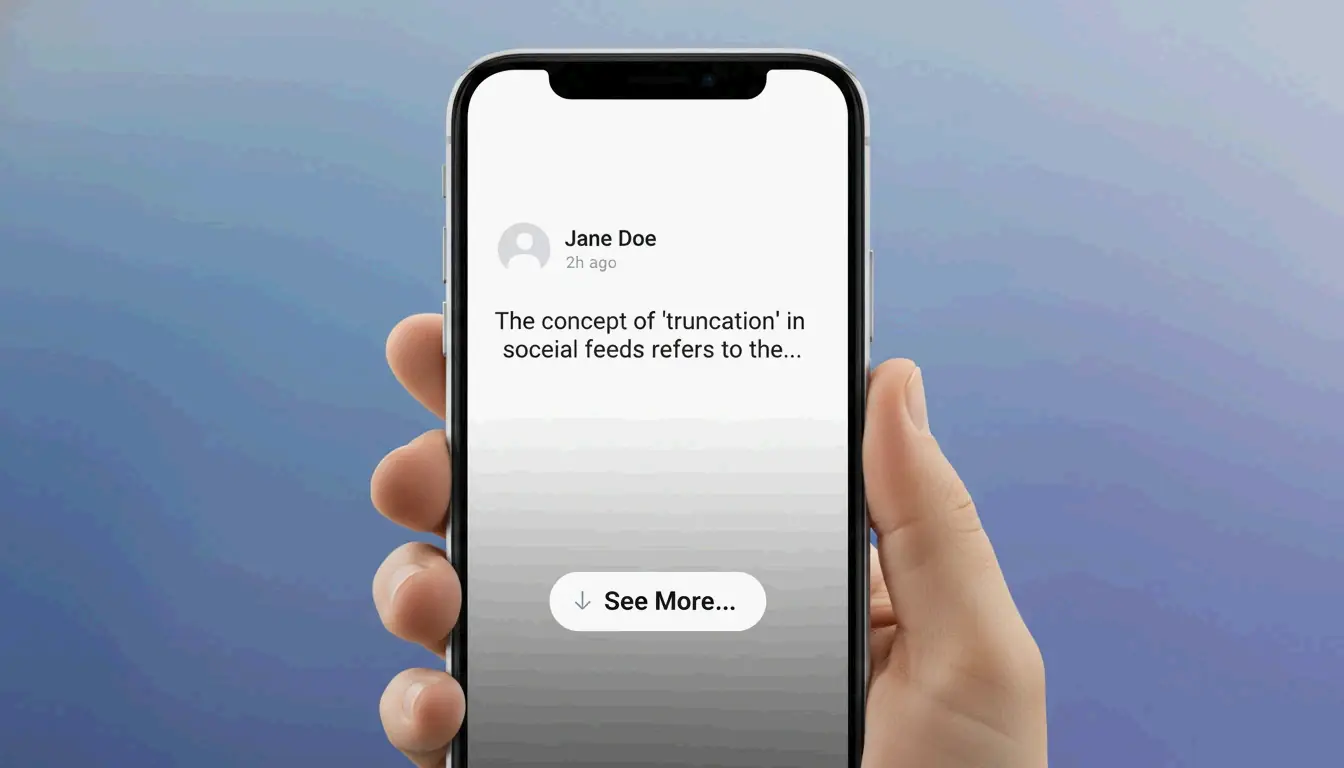
    You spend twenty minutes crafting the perfect post. You hit publish, pull up your phone to check how it looks, and your best line — the one that was supposed to make people click — is hidden behind a “See More” button. Sound familiar?

    As of 2026, social media character limits range from 280 on X (Twitter) to 63,206 on Facebook. But here is what really matters: Instagram captions truncate at just 125 characters, and LinkedIn cuts you off at 210. If your hook is buried past that point, most people will never see it. Think of it like packing for a trip — you can bring a massive suitcase, but if the most important items are stuffed at the bottom, you will never reach them when you need them.

    The 2026 Cheat Sheet: Where Your Posts Actually Get Cut Off

    The number that should keep you up at night is not the “maximum limit.” It is the truncation point — the exact spot where a platform hides your text behind a “See More” link. Research shows that most mobile users decide whether to keep reading in under two seconds. If your call-to-action or best insight is past that cutoff, it is essentially invisible.

    Here is the full picture for every major platform in 2026:

    Platform Max Character Limit What People Actually See (Truncation Point)
    X (Twitter) 280 (Free) / 25,000 (Premium) 280 characters (even Premium posts get cut with “Show More”)
    Instagram 2,200 ~125 characters
    LinkedIn 3,000 ~140-210 characters
    Facebook 63,206 ~477 on desktop, ~125 on mobile
    TikTok 4,000 ~100 characters
    Threads 500 (+10,000 for attachments) 500 characters (full main post visible)
    YouTube 5,000 (description) ~157 characters in search results

    Notice something? On most platforms, the visible window is shockingly small. That is not a bug — it is by design. Platforms want short, punchy content that keeps people scrolling. Your job is to make those first few characters count.

    The Pixel Problem: Why “W” Takes More Space Than “i”

    According to PickBlend, platforms often measure display space in pixels rather than raw character counts. A wide letter like “W” physically takes up more room than a skinny “i.” This means your actual visible text can vary depending on what words you choose. Research from TypeCount confirms that if your hook is not settled within those first 125 to 210 characters, readers are far more likely to keep scrolling past your post entirely.

    Finding Your Rhythm: Platform-by-Platform Strategies

    Knowing the limits is step one. Knowing how to work with them is where the magic happens. Each platform has its own personality, and the best creators adjust their approach like a musician tuning for different venues.

    X (Twitter): The Sprint

    X is still the land of the quick take. The 280-character limit for standard accounts keeps things fast. Even X Premium users who can write up to 25,000 characters still face truncation — those first 280 characters have to earn the click. As SocialRails notes, long posts get a “Show more” link, so the opening line remains your most valuable real estate.

    Data from WordCountChecker shows that X posts between 71 and 100 characters perform about 17% better than longer ones. That is the sweet spot — long enough to say something meaningful, short enough that nothing gets cut off.

    Facebook: Short Wins Big

    Here is a number that might surprise you: TypeCount reports that Facebook posts under 80 characters get a 66% engagement boost. Sixty-six percent. That is the difference between a post that fizzles and one that sparks a real conversation. Keep it brief, lead with your point, and save the backstory for the comments.

    LinkedIn: Where Depth is Rewarded

    LinkedIn is the exception to the “shorter is better” rule. Posts between 1,800 and 2,100 characters tend to see the most engagement because the professional audience values detailed insights and lived experience. This is your chance to share a real story — what you learned from a failure, how you solved a problem over months of effort, or the habit that changed your career trajectory. People come to LinkedIn to learn, not just scroll.

    TikTok: The 100-Character Window

    TikTok bumped caption limits to 4,000 characters to help its search engine categorize videos, but the visible portion in the feed is still only about 100 characters. Your caption needs to do two things: hook the viewer and include searchable keywords. Front-load the hook, then use the rest for SEO juice.

    The Threads Strategy: 10,000-Character Attachments

    Late 2025 brought a game-changer. Meta’s Threads introduced Long-form Attachments that hold up to 10,000 characters — without cluttering the main feed. According to WordCountChecker, these expandable sections let creators keep their posts clean while still offering deep dives for interested readers. Unlike X Premium, this feature is currently free for everyone, making it one of the best tools for organic growth in 2026.

    Think of it like a book cover and its first chapter. The 500-character post is your cover — it needs to be compelling enough to open. The attachment is the chapter — where you deliver real value.

    The Emoji and Link Traps: Hidden Character Costs

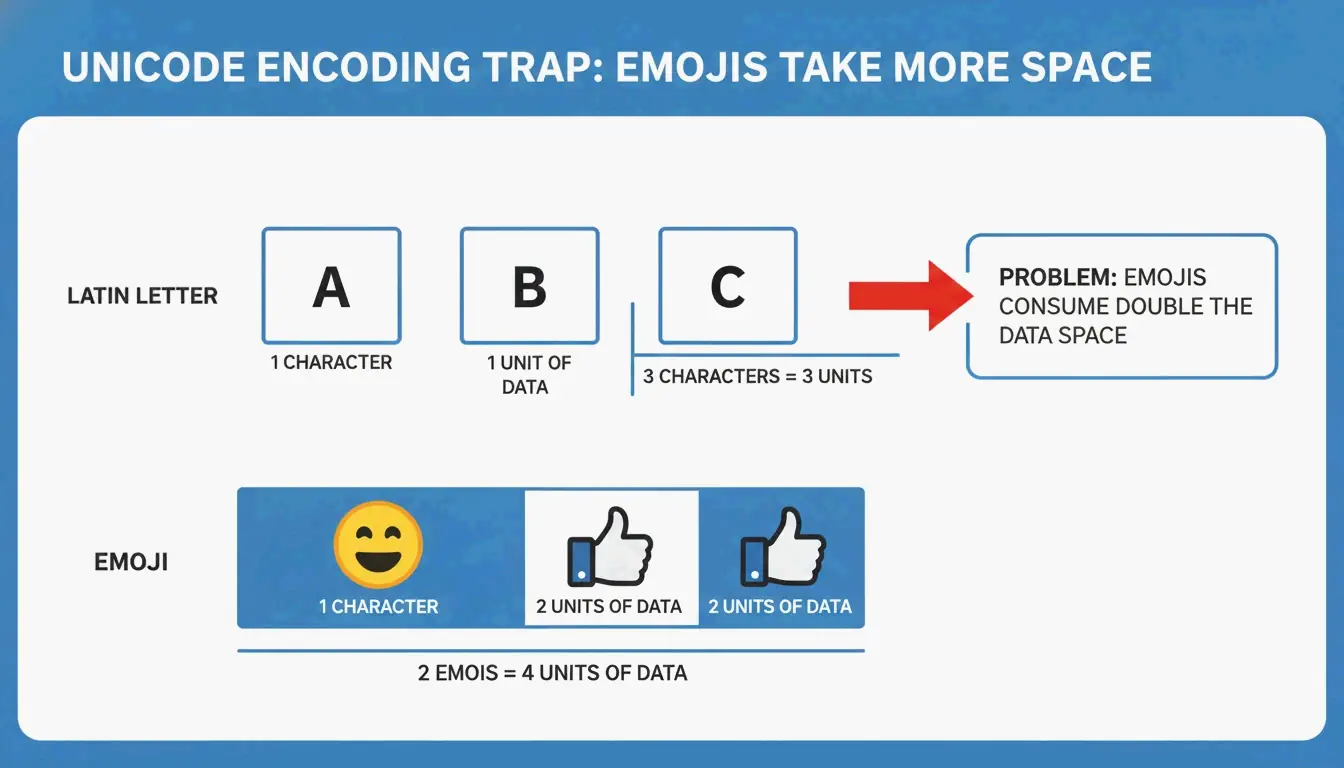
    Here is a detail that catches many people off guard. Most platforms use Unicode encoding, and emojis do not always count as one character. According to SocialRails, a single emoji is typically counted as 2 characters because it is a “double-width” character in the code. Add three emojis to your X post, and you have just lost six characters of your precious 280.

    The SMS world is even more dramatic. A standard text allows 160 characters using GSM-7 encoding. Add just one emoji, and the whole message switches to UCS-2 encoding, slashing your limit to just 70 characters. That is more than a 50% reduction from a single symbol.

    A simple comparison showing how an emoji consumes more space than a standard letter.

    How Links Affect Your Count

    On X (Twitter), every link counts as exactly 23 characters, regardless of how long the actual URL is. X automatically shortens links using its t.co service. On other platforms, long URLs eat into your visible text, so using a URL shortener is a smart habit to keep your posts looking clean and prevent truncation.

    Building the Habit: A Daily Workflow That Works

    The difference between creators who grow and those who stay stuck often comes down to one simple habit: checking their character count before they post. It takes less than ten seconds but saves you from publishing content where the best parts are invisible.

    Here is a practical routine you can start today:

    1. Write your hook first. Before you write anything else, craft the first 100-125 characters. That is your guaranteed visible space on most platforms.
    2. Use a real-time counter. A character counter that shows you exactly where each platform will cut off your text removes the guesswork entirely.
    3. Match your length to the platform. Under 80 characters for Facebook, 71-100 for X, 1,800-2,100 for LinkedIn. Treat these like guardrails, not suggestions.
    4. Test on mobile. Pull up your post on your phone before you hit publish. If the hook is hidden, rearrange.

    Consistency compounds. Do this every day for a month, and you will develop an intuitive feel for how long each post should be — no counter needed. That is the kind of small, daily practice that separates hobbyists from professionals.

    Conclusion

    Maximum character limits are bigger than ever in 2026, but the real battle is won in those first 125-200 characters. Your truncation point is the gatekeeper between your content and your audience. The creators who grow are not the ones who write the most — they are the ones who make every visible character count.

    Start with your hook, match your length to each platform’s personality, and build the daily habit of checking before you publish. It is a small investment that pays off with every single post.

    FAQ

    Do emojis count as one or two characters on social media in 2026?

    Most social platforms display emojis as 1 character in the user interface. However, from a technical standpoint, complex emojis (such as those with skin tones or family groups) use Unicode joiners and may count as 2 to 7 characters in backend limits or SEO metadata. For X (Twitter), a standard emoji typically counts as 2 characters.

    How does X (Twitter) count URLs toward the character limit?

    X automatically shortens every URL using its t.co service and counts it as exactly 23 characters, regardless of the actual URL length. This means even long tracking URLs will not consume your entire character allowance.

    What are the character limits for social media bios and profile names?

    As of 2026, X bios allow 160 characters, Instagram allows 150, LinkedIn provides a 2,600-character “About” section, and TikTok allows only 80 characters for bios. Keeping bios concise is essential to avoid truncation on mobile profile views.

    Why does my Instagram caption look cut off even though I am under the 2,200 limit?

    Instagram truncates captions at approximately 125 characters in the feed. Even though the maximum is 2,200, only the first 125 characters are visible before users see a “more” prompt. Your most important message needs to be in that opening window.

    Is there a free way to post longer content on Threads?

    Yes. Threads allows you to add Long-form Attachments holding up to 10,000 characters for free. These attachments do not clutter the main feed and give interested readers a way to dive deeper into your content.

  • Discover What Makes Your Birthday Unique: A Fun Facts Calculator for 2026

    Discover What Makes Your Birthday Unique: A Fun Facts Calculator for 2026

    Your birthday is more than just a date on the calendar — it is a doorway into a surprising collection of facts about you. A birthday facts calculator takes your date of birth and instantly reveals things you probably never knew: your exact age down to the second, how rare your birthday is, your zodiac signs, your birthstone, and even what generation you belong to. Best of all, everything runs right in your browser — nothing is stored, and your personal data stays completely private.

    Let us walk through what you can discover, one section at a time.

    Your Exact Age — Down to the Second

    Most of us know our age in years, but have you ever wondered exactly how many days or seconds you have been alive? A birthday facts calculator gives you the full picture.

    Here is how it works: the tool subtracts your birth date from today’s date and breaks the result into years, months, days, hours, minutes, and seconds. According to Intelligent Calculator, this is done by counting the full years first, then adjusting for whether your birthday has already passed this year.

    For example, as CalendarZ notes, someone born on December 1, 2001, has already lived through more than 769 million seconds. They are fast approaching the 1 Billion Seconds milestone, which typically arrives around age 31 years and 8 months. Imagine throwing a “1 Billion Seconds Alive” party!

    Milestone Approximate Age
    100 million seconds ~3 years, 2 months
    500 million seconds ~15 years, 10 months
    1 billion seconds ~31 years, 8 months
    10,000 days alive ~27 years, 5 months

    What About Leap Year Birthdays (February 29)?

    People born on February 29 — sometimes called Leaplings — make up only about 1 in 1,461 births, as noted by EveryFreeTool. During non-leap years, different places handle the official date differently:

    • UK and Hong Kong: The legal birthday moves to March 1.
    • Many U.S. states: The birthday is recognized on February 28.

    A good birthday calculator handles this automatically, so leaplings get accurate results without any extra hassle.

    How Common (or Rare) Is Your Birthday?

    Not all birthdays are created equal. Birth rates follow clear seasonal patterns, which means some dates are far more common than others.

    Data from How Rare Is My Birthday reveals some fascinating patterns:

    Category Examples
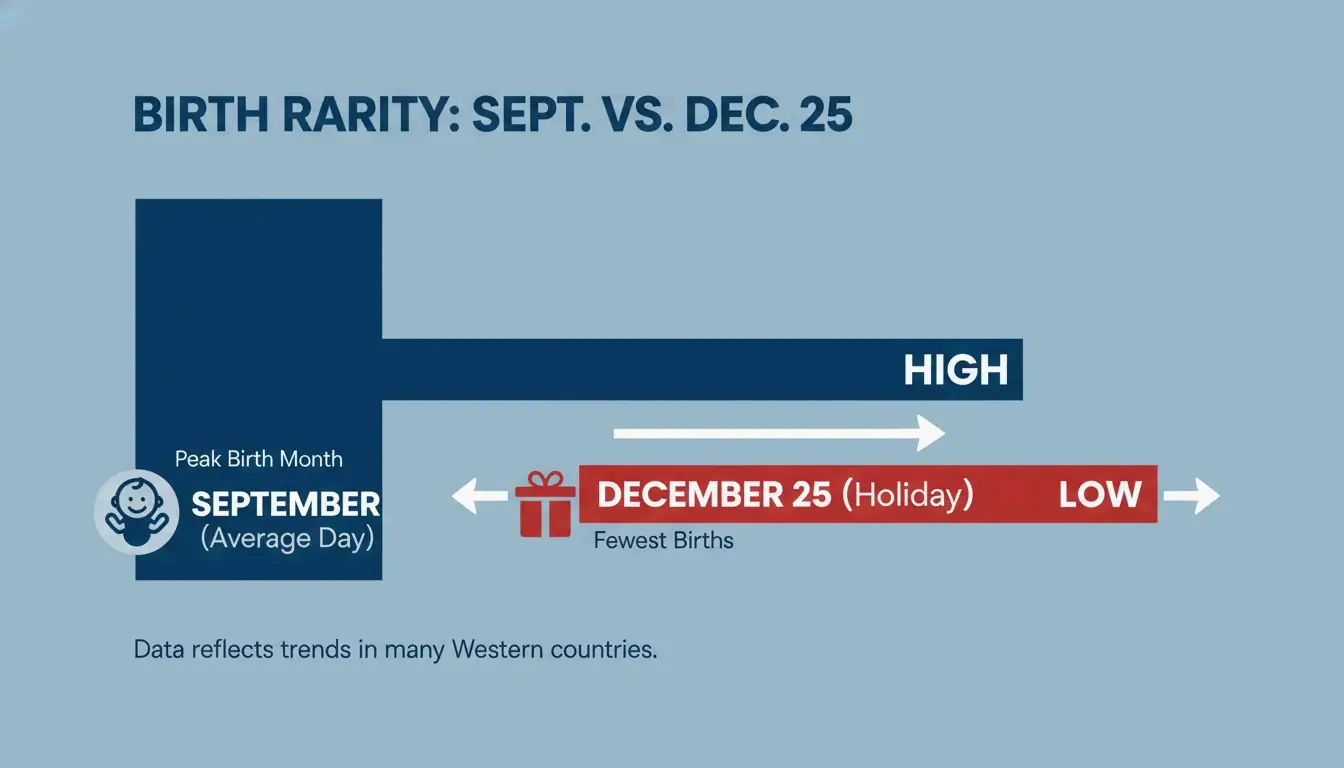
    Most common birthday September 9 (peak birth season is July through early October)
    Rarest birthdays December 25 (Christmas), January 1 (New Year’s Day), February 29
    Busiest day of the week Tuesday
    Quietest day of the week Sunday

    Why the gap? Hospitals schedule fewer elective deliveries (C-sections and inductions) on weekends and major holidays. As Caesar Cipher points out, Tuesday is the most common day for births in the U.S., followed by Monday and Wednesday. Saturday and Sunday see noticeably lower numbers.

    A simple comparison of common vs. rare birth periods

    Real-Life Scenario

    Imagine you are planning a group event and want to avoid date conflicts. Knowing that September birthdays are extremely common might change how you plan. Or, if your birthday falls on December 25, you now have a fun conversation starter: “I share my birthday with only the rarest group of people!”

    Your Zodiac Sign, Birthstone, and Birth Flower

    Your birth date connects you to a set of traditional symbols that people have cherished for centuries.

    Western Zodiac: There are 12 signs, each covering a range of dates. For example, as EveryFreeTool notes, an April 25 birthday falls under Taurus, while March 25 is Aries.

    Chinese Zodiac: This follows a 12-year animal cycle. In 2026, we are in the Year of the Horse.

    Birthstones and Birth Flowers: These are tied to your birth month. GetZenQuery notes that April’s primary birthstone is the Diamond, symbolizing strength. Here is a quick reference:

    Month Birthstone Symbolizes
    January Garnet Protection
    February Amethyst Peace
    March Aquamarine Courage
    April Diamond Strength
    May Emerald Wisdom
    June Pearl Purity
    July Ruby Passion
    August Peridot Growth
    September Sapphire Wisdom
    October Opal Hope
    November Topaz Friendship
    December Turquoise Good fortune

    According to EveryFreeTool, birthstone traditions date back to the 15th century, making them a fun piece of personal history to share.

    Life Milestones Worth Tracking

    A birthday facts calculator does not just look backward — it also helps you look ahead. Here are some milestones worth knowing about:

    Next Birthday Countdown: The tool calculates how many days remain until your next birthday. If your birthday has already passed in 2026, it counts down to 2027.

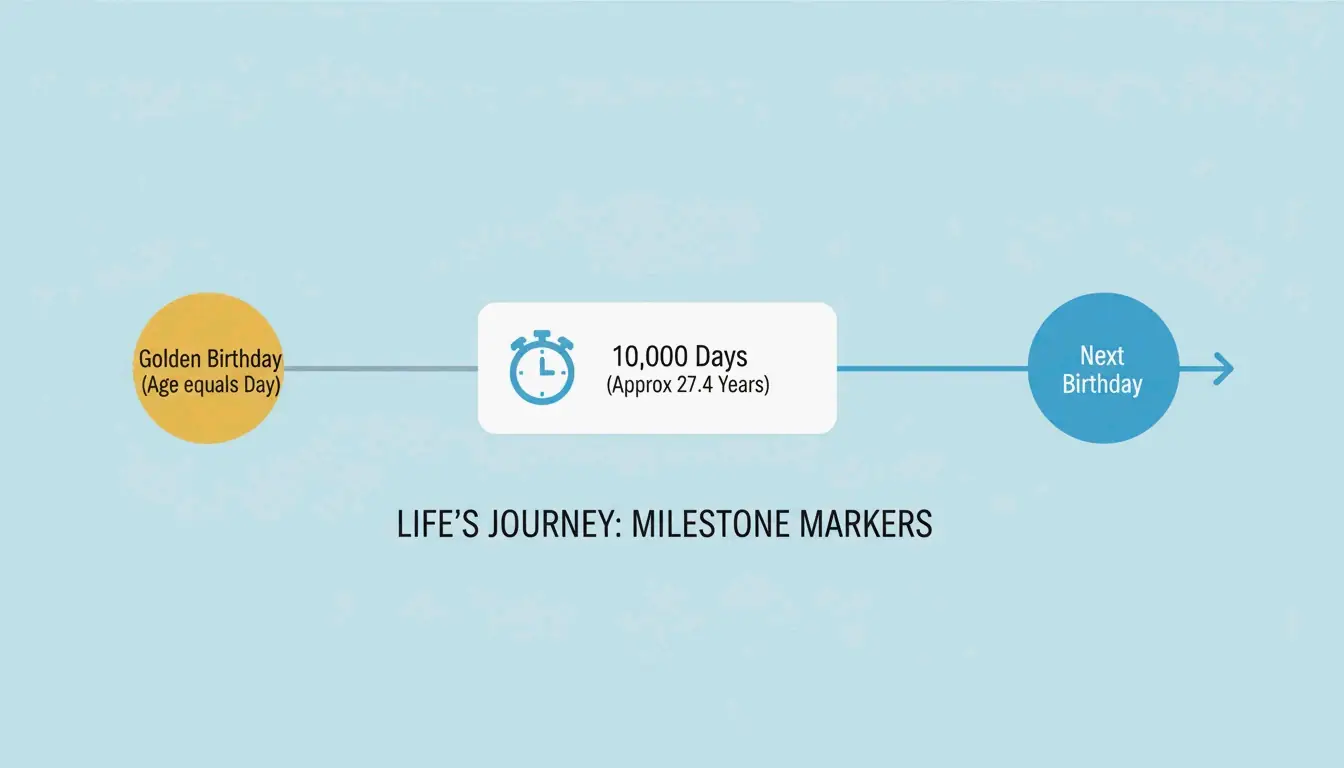
    Golden Birthday: This is the special occasion when your age matches the day you were born. For example, if you were born on the 15th of a month, your Golden Birthday is when you turn 15.

    10,000 Days Alive: As Caesar Cipher estimates, this milestone arrives when you are roughly 27 years and 5 months old. It is a great excuse for a low-key celebration.

    A minimalist timeline of unique life milestones

    Which Generation Do You Belong To?

    Knowing your generational cohort helps you understand your place in the cultural landscape. Intelligent Calculator uses these widely accepted boundaries:

    Generation Birth Years Age in 2026
    Millennials 1981 – 1996 30 – 45
    Generation Z 1997 – 2012 14 – 29
    Generation Alpha 2013 – present 0 – 13

    For those born in 2005 and 2008, 2026 is a landmark year: they turn 21 and 18 respectively, stepping into new chapters of adulthood within Gen Z.

    On This Day in History

    Every birthday shares its date with memorable moments from the past. If you were born on December 1, for instance, CalendarZ notes that on that date in 1955, Rosa Parks refused to give up her bus seat in Montgomery, Alabama. Back in 1913, Ford Motor Company introduced the first moving assembly line on the same date.

    Fun Captions for Your Birthday Posts

    Want to impress your friends on social media? Try one of these:

    • “I have officially survived 1 billion seconds of Earth’s chaos!”
    • “Celebrating my Golden Birthday — the only time my age and the date actually match.”
    • “Born on a Tuesday: statistically common, but personally one of a kind.”

    Privacy First: How These Tools Keep Your Data Safe

    A trustworthy birthday facts calculator does all its work right in your browser. That means your birth date is never sent to a server or stored in a database. You get your fun facts instantly, and when you close the tab, everything disappears. This is the approach recommended by privacy-focused tool makers — your personal information should stay personal.

    Conclusion

    Your birthday holds a surprising amount of information: your exact age in seconds, how rare your birth date is, your zodiac and birthstone, upcoming milestones, and your generational identity. A birthday facts calculator brings all of this together in seconds — no sign-ups, no data collection, just fun and useful insights. Give it a try and discover something new about the day you were born.

    FAQ

    What is the rarest birthday in the United States?

    According to How Rare Is My Birthday, Christmas Day (December 25) is statistically the rarest birthday. January 1 and February 29 are also very uncommon. This is mainly because hospitals schedule far fewer C-sections and inductions on major holidays.

    How does the calculator handle leap year birthdays (February 29)?

    In non-leap years, most calculators shift the date to March 1 for accuracy. Caesar Cipher explains that the tool accounts for the extra 0.2425 days per year, identifies “Leapling” status, and provides a countdown to the next true four-year anniversary.

    What is the Birthday Paradox?

    The Birthday Paradox is a probability theory that says in a group of just 23 people, there is a 50% chance that two of them share the same birthday. According to Caesar Cipher, that probability jumps to 99.9% in a group of 70. It sounds impossible, but the math checks out.

    Is my birth date stored when I use a birthday facts calculator?

    Privacy-focused tools process everything locally in your browser. Your birth date is never uploaded to a server or saved in any database. When you close the page, the data is gone.

  • Best JSON Formatter Tools for 2026: What Actually Works, What to Avoid

    Best JSON Formatter Tools for 2026: What Actually Works, What to Avoid

    You paste your API response into a JSON formatter to debug a payload, and three days later your data shows up in a breach report. It sounds dramatic, but in 2026 this is a real risk. Several popular JSON formatter extensions were caught injecting adware and tracking user data in March 2026. Picking the right tool is no longer just about convenience — it is a security decision.

    A JSON Formatter is a developer tool that transforms raw, minified data into a readable structure using indentation and syntax highlighting. For maximum security in 2026, prioritize client-side tools, terminal commands like jq, or verified open-source extensions to prevent sensitive data leaks.

    How to Choose a Secure JSON Formatter in 2026

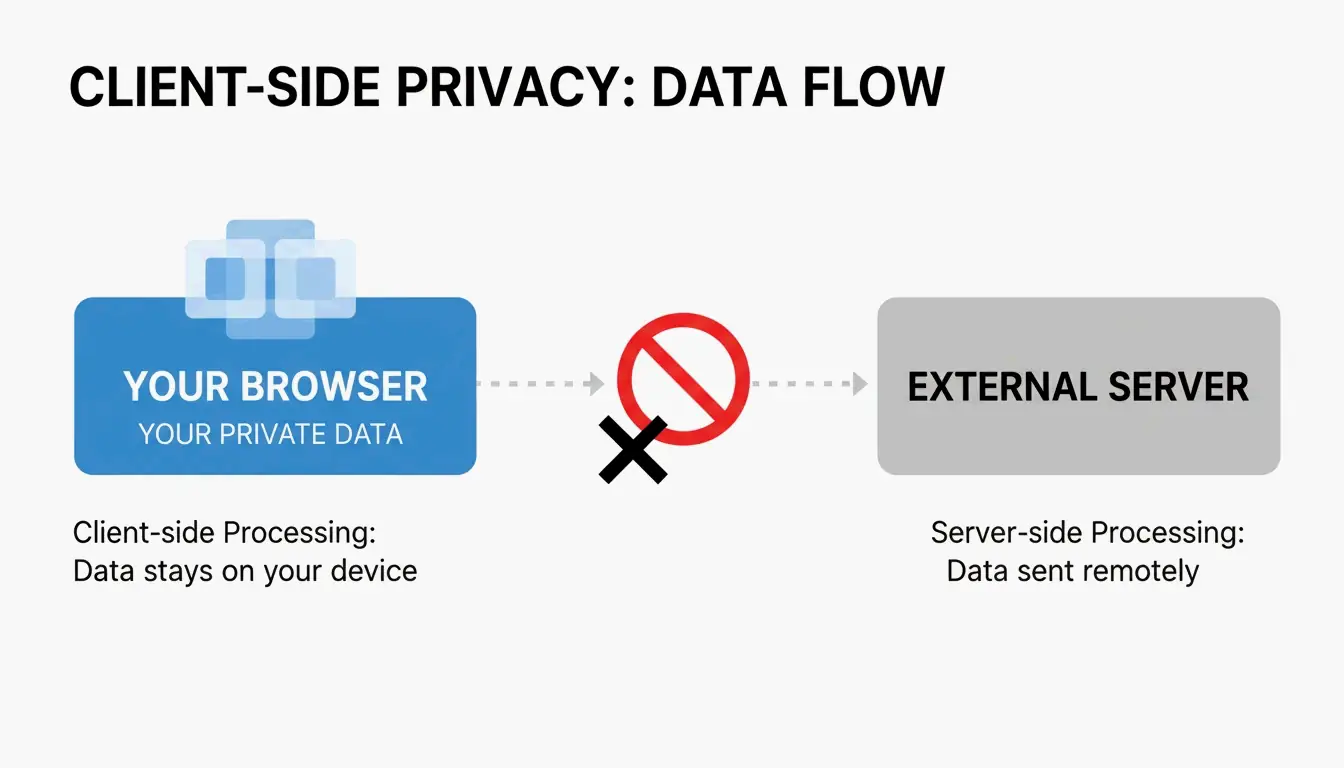
    Security is the baseline, not a bonus. The gold standard is client-side processing — your JSON data stays inside your browser and never travels to an external server. When you are pasting API keys, user data, or internal config payloads, this distinction matters.

    The Two Features You Actually Need

    Beyond security, look for exactly two features that make debugging faster:

    1. Syntax Highlighting — Color-coded data types (green for strings, orange for numbers) so you can scan structure at a glance.
    2. Collapsible Tree View — Fold/unfold nested objects and arrays to navigate deep structures without scrolling through walls of text.

    Visualizing the Client-side vs Server-side data flow concept.

    The 10MB Warning

    As noted by JSON Formatter & Viewer, most browser-based formatters hit a wall at about 10 MB. Beyond that, the tab freezes. Professional tools will suggest switching to raw text view or a local CLI processor for large files.

    The 2026 Extension Crisis: What Happened and What to Use Now

    In March 2026, the developer community discovered that several popular JSON formatter extensions had pivoted to an adware model. Reports on Hacker News revealed that one widely used extension (v2.1.14) started injecting ads into checkout pages and tracking users’ locations without consent.

    The root cause: extensions exploiting Manifest V3 content scripts. While Manifest V3 was designed to improve security by limiting background tasks, it does not prevent extensions from using content scripts to manipulate webpage data or display intrusive donation appeals.

    Over 2 million users were affected, according to data from ChromeBoard and community threads. The original developer of one compromised project stated in a GitHub README: “I am no longer developing JSON Formatter as an open source project. I’m moving to a closed-source, commercial model.”

    The Safe Alternatives

    JSON Alexander has become the community’s go-to replacement. Created by Wes Bos, a well-known web developer, it was designed as a clean, lightweight, fully open-source alternative. No tracking, no adware, just formatting.

    FormatArc is another trusted option. According to FormatArc, their tool guarantees client-side processing — clicking “Format” runs a JavaScript function in your browser, not a POST request to a remote server. You can verify this yourself by opening your browser’s Network tab; a secure tool will show zero outgoing traffic during processing.

    The Developer’s Toolkit: CLI and Native Methods

    If you want total control, the terminal is unbeatable. These are the tools that never phone home.

    jq: The Industry Standard

    jq is the Swiss Army knife for JSON processing. Filter, transform, and beautify data without touching a browser.

    
    echo '{"id":1,"name":"Alice","active":true}' | jq .
    
    # Output:
    # {
    #   "id": 1,
    #   "name": "Alice",
    #   "active": true
    # }
    
    # Extract specific fields
    echo '{"user":{"name":"Alice","role":"admin"}}' | jq '.user.name'
    # Output: "Alice"
    
    # Format a file
    jq . input.json > formatted.json
    

    Native Methods: Zero Dependencies

    JavaScript / Node.js:

    // Built-in, no install needed
    const data = { id: 1, name: "Alice" };
    const formatted = JSON.stringify(data, null, 2);
    console.log(formatted);
    

    Python:

    # Pipe input directly, no install needed
    echo '{"id":1}' | python3 -m json.tool
    
    # Output:
    # {
    #     "id": 1
    # }
    
    # Format a file
    python3 -m json.tool input.json > formatted.json
    

    Node.js (npx):

    # One-off formatting without permanent install
    npx json-beautifier input.json
    

    Fixing Common JSON Parse Errors

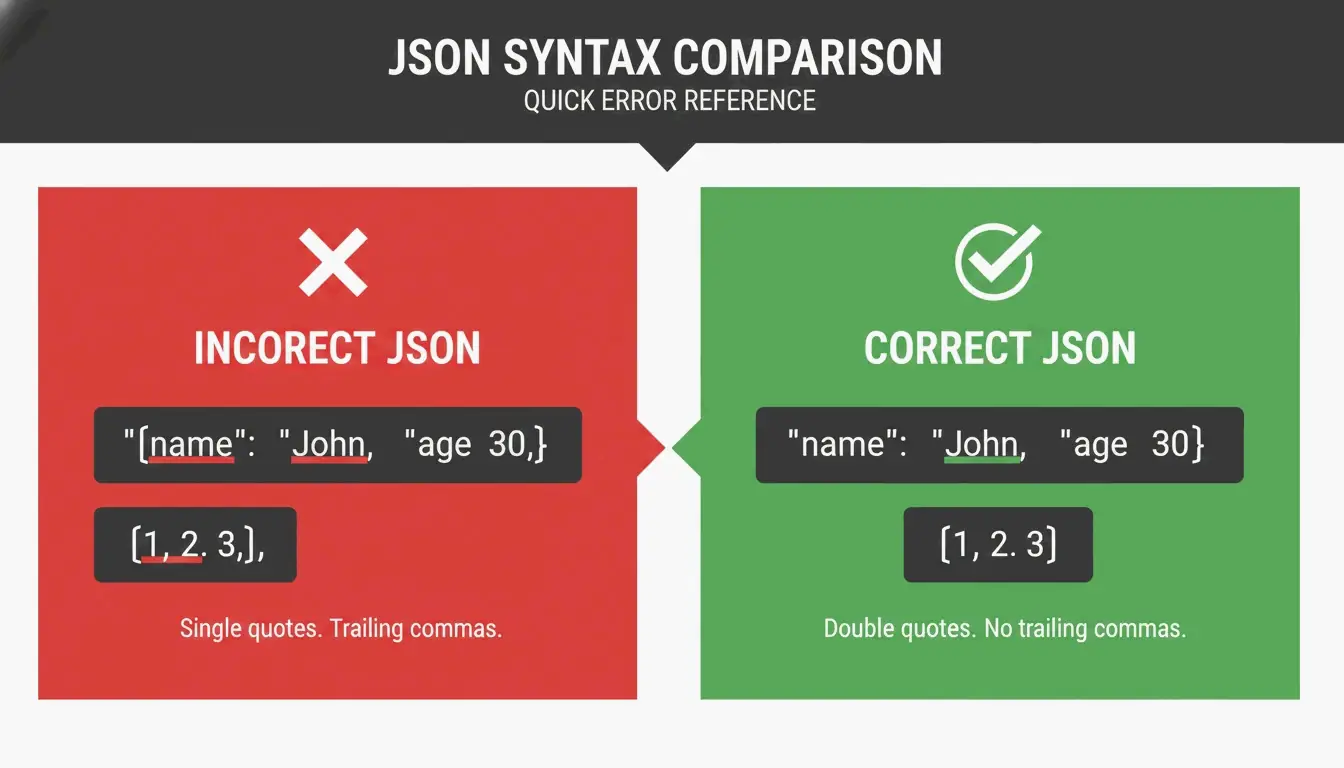
    Even the best formatter will not work if your JSON is broken. Here are the three most common “JSON Killers” and how to fix each one.

    Killer 1: Trailing Commas

    // BROKEN
    {
      "name": "Alice",
      "role": "admin",   // <-- this comma is illegal
    }
    
    // FIXED
    {
      "name": "Alice",
      "role": "admin"
    }
    

    Killer 2: Single Quotes

    // BROKEN
    {'name': 'Alice'}
    
    // FIXED
    {"name": "Alice"}
    

    Killer 3: Unquoted Keys

    // BROKEN
    {name: "Alice"}
    
    // FIXED
    {"name": "Alice"}
    

    A simple Right vs Wrong comparison of JSON syntax rules.

    Debugging Checklist

    Before you hit format, run through these three checks:

    1. Any extra commas before } or ]?
    2. All single quotes replaced with double quotes?
    3. Every key wrapped in double quotes?

    If it still fails, use a validator like JSON Formatter Pro that gives you the exact line and character position. The error might be an invisible “ghost” character — a zero-width space or BOM that snuck in from a copy-paste.

    Quick Comparison: 2026 Tool Landscape

    Tool Type Client-Side Cost Best For
    jq CLI N/A (local) Free Terminal workflows, scripting
    JSON Alexander Browser extension Yes Free Quick browser-based formatting
    FormatArc Web tool Yes Free One-off formatting in browser
    python3 -m json.tool CLI (built-in) N/A (local) Free Quick pipes, no install needed
    JSON.stringify() Native JS N/A (local) Free Node.js development

    Conclusion

    By 2026, choosing a JSON formatter is a security decision. The recent wave of browser extensions turning into adware proves that “free” tools can carry a hidden cost. Your API keys and internal payloads deserve better.

    Your action plan: Audit your current extensions. Delete any closed-source tools that recently changed their privacy policies. For daily work, use jq in the terminal or community-vetted open-source tools like JSON Alexander. Your data stays where it belongs — on your machine.

    FAQ

    Is it safe to paste sensitive API data into online JSON formatters?

    Only if the tool uses 100% client-side processing, meaning your data stays in the browser and is never sent to a server. Check the tool’s privacy policy and monitor your network logs. For high-security environments, local CLI tools like jq are the recommended standard.

    How do I fix a JSON Parse Error caused by trailing commas or single quotes?

    JSON requires double quotes for all keys and string values; single quotes always trigger an error. Remove any commas that appear after the last element in an array or object. Use a validator like FormatArc or JSON Formatter Pro to highlight the specific line and character where the error occurs.

    What are the best command-line alternatives to GUI JSON formatters?

    The industry standard is jq, which handles both beautifying and filtering. Python’s built-in json.tool module is an excellent zero-install alternative. Node.js developers can use npx json-beautifier for quick, local formatting without a graphical interface.

    How can I tell if a browser extension is safe to use?

    Check three things: Is it open-source with active maintenance? Does its privacy policy explicitly state client-side processing? Has it been recently updated? If an extension has gone closed-source, changed its privacy policy recently, or has not been updated in months, find an alternative.

  • JWT Parser Guide: How to Decode, Validate, and Inspect JSON Web Tokens Safely

    JWT Parser Guide: How to Decode, Validate, and Inspect JSON Web Tokens Safely

    Your authentication just broke in production. Users are getting “Invalid Token” errors, and you need to figure out why — fast. You crack open the JWT, and it looks like gibberish: three blocks of random characters separated by dots. The data is in there, but you cannot read it without a parser.

    A JWT Parser is a specialized tool that breaks down the three parts of a JSON Web Token — Header, Payload, and Signature — following the RFC 7519 standard. As of April 2026, these parsers decode Base64URL-encoded data and verify signatures using secrets or public keys to ensure the token has not been tampered with, blocking threats like the “alg: none” attack.

    What a JWT Parser Actually Does

    Think of a JWT parser as a translator. It takes a long, opaque string and turns it back into readable JSON objects. This is fundamental for managing user identities and securing data exchange in modern applications.

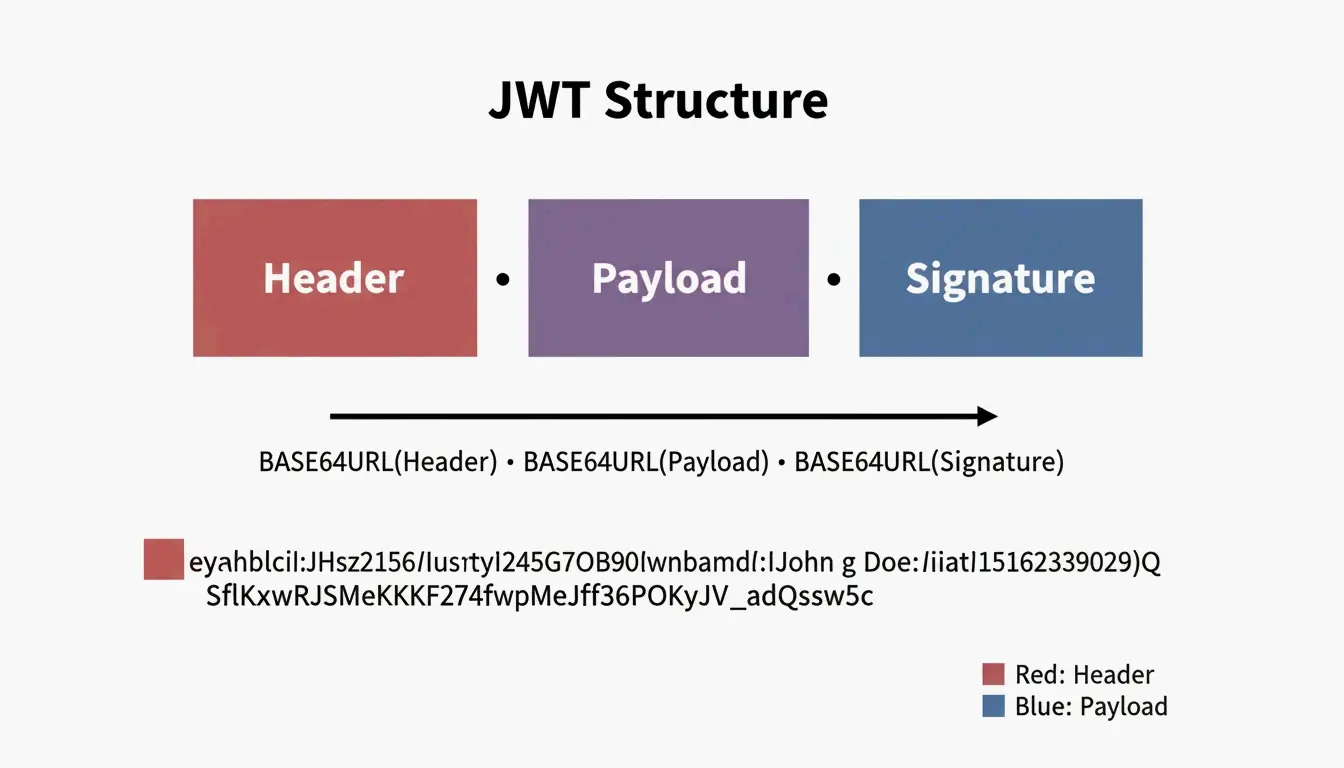
    Internally, the parser finds the two periods (.) that divide the token into three sections:

    Section Purpose Encoded? Readable Without Key?
    Header Metadata: signing algorithm (HS256, RS256) Base64URL Yes
    Payload Claims: user data, expiration, roles Base64URL Yes
    Signature Digital seal proving authenticity HMAC/RSA No — requires key

    Simplified 3-part structure of a JWT token

    Decoding Step-by-Step: What Happens Inside

    Let us trace through a real token. Take this example JWT:

    eyJhbGciOiJIUzI1NiIsInR5cCI6IkpXVCJ9.eyJzdWIiOiIxMjM0NTY3ODkwIiwibmFtZSI6IkpvaG4iLCJpYXQiOjE3MDAwMDAwMDB9.SflKxwRJSMeKKF2QT4fwpMeJf36POk6yJV_adQssw5c
    

    Step 1: Split on periods

    [0] eyJhbGciOiJIUzI1NiIsInR5cCI6IkpXVCJ9
    [1] eyJzdWIiOiIxMjM0NTY3ODkwIiwibmFtZSI6IkpvaG4iLCJpYXQiOjE3MDAwMDAwMDB9
    [2] SflKxwRJSMeKKF2QT4fwpMeJf36POk6yJV_adQssw5c
    

    Step 2: Base64URL-decode section [0] (Header)

    {
      "alg": "HS256",
      "typ": "JWT"
    }
    

    Step 3: Base64URL-decode section [1] (Payload)

    {
      "sub": "1234567890",
      "name": "John",
      "iat": 1700000000
    }
    

    Step 4: Verify section [2] (Signature) — requires the secret key

    The parser takes the Base64URL-encoded header + “.” + payload, then computes an HMAC-SHA256 using the secret. If the result matches section [2], the token is authentic.

    Critical Security Note: Base64URL Is Not Encryption

    A common trap for newer developers is assuming that the encoded header and payload are encrypted. They are not. As JustUse.me points out, Base64URL encoding just makes JSON safe to send through URLs and headers. Anyone who has the token can decode the payload without a password or key.

    Never store sensitive data (passwords, SSNs, API keys) in a JWT payload. It is visible to anyone who intercepts the token.

    Signature Verification: The Security Gate

    While anyone can read a token’s data, signature verification is what actually keeps your system secure. A JWT parser does not just read information — it proves where it came from.

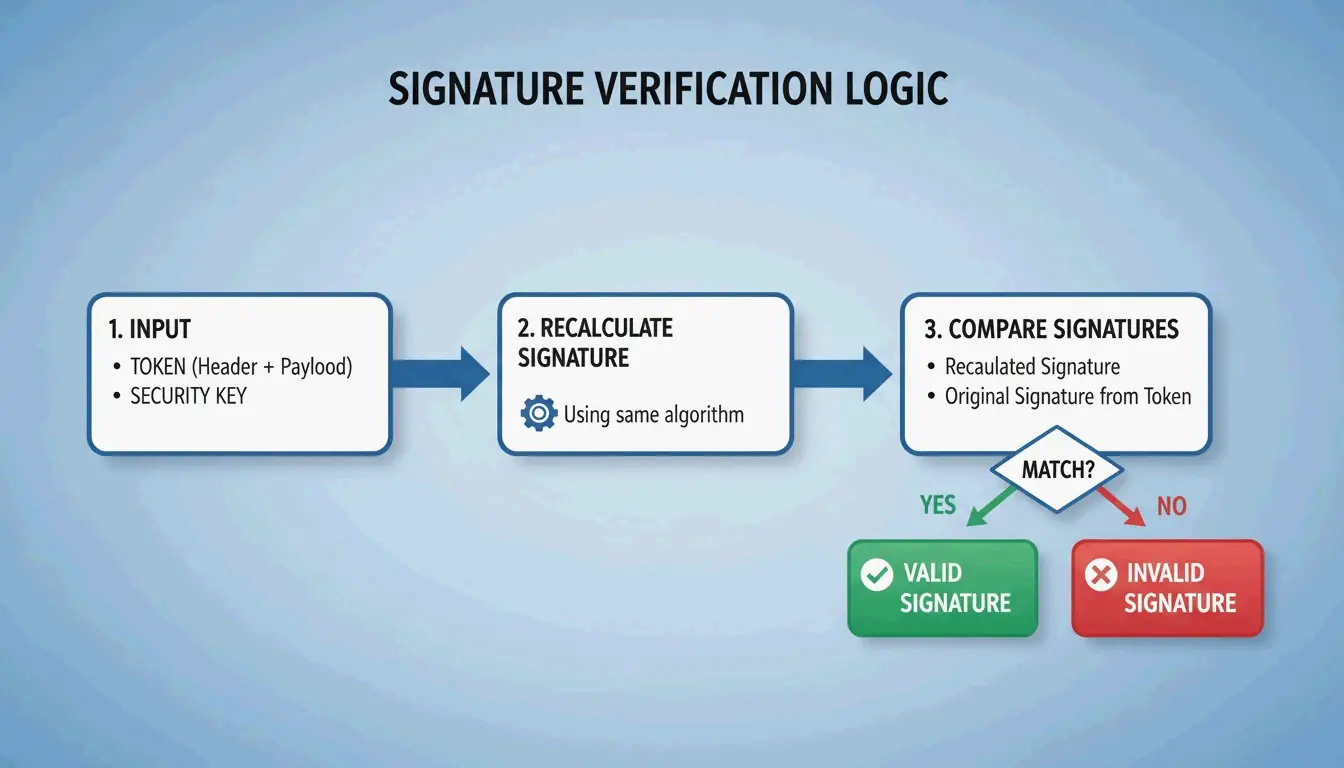
    The parser recalculates the signature using the header, payload, and a key, then checks if the result matches the signature on the token. If they do not match, the token has been tampered with.

    Two Algorithm Families

    Algorithm Key Type How It Works Common Use Case
    HS256 (HMAC) Symmetric — same secret key for signing and verifying Both parties share one secret Single-service auth, microservices within one team
    RS256 (RSA) Asymmetric — private key signs, public key verifies Sender keeps private key; anyone with public key can verify OAuth2 providers, third-party API integrations
    ES256 (ECDSA) Asymmetric — same model as RSA but with elliptic curves Smaller keys, faster verification Mobile apps, performance-sensitive services

    The 3-step verification logic of a JWT parser

    The “alg: none” Attack

    This is one of the most dangerous JWT vulnerabilities. An attacker modifies the header to claim "alg": "none" and strips the signature. A poorly implemented parser might accept this, treating the token as valid without any verification.

    Defense: Your parser must explicitly reject any token where the algorithm is “none” or does not match your expected algorithm. Stas Persiianenko, who developed the Apify JWT tool, emphasizes that while tokens are transparent by design, their security depends on the parser strictly rejecting unsigned or tampered tokens.

    
    decoded = jwt.decode(token, key, algorithms=None)  # NEVER do this
    
    # SAFE: explicitly specify allowed algorithms
    decoded = jwt.decode(token, key, algorithms=["HS256"])
    

    Standard JWT Claims: What Each Field Means

    A JWT parser extracts “claims” from the payload. These follow the JOSE (JSON Object Signing and Encryption) framework for cross-system compatibility.

    Claim Full Name Purpose Example Value
    iss Issuer Who issued the token "auth.example.com"
    sub Subject The user or entity the token represents "user:12345"
    aud Audience Intended recipient of the token "api.example.com"
    exp Expiration Time When the token becomes invalid 1700000000 (Unix timestamp)
    iat Issued At When the token was created 1699999999
    nbf Not Before Token is not valid before this time 1699999999
    jti JWT ID Unique identifier for the token "a1b2c3d4"

    When using asymmetric signatures, parsers often reference a JWK (JSON Web Key) — a JSON structure representing a public key. The parser automatically fetches the correct JWK from the issuer’s metadata endpoint to verify the token.

    Implementation: Real Code for Production

    PHP with lcobucci/jwt

    The PHP ecosystem’s standard is lcobucci/jwt. Data from Packagist shows over 322 million installs as of April 2026, making it the go-to for Laravel and Symfony projects.

    use Lcobucci\JWT\Configuration;
    use Lcobucci\JWT\Signer\Hmac\Sha256;
    use Lcobucci\JWT\Signer\Key\InMemory;
    
    $config = Configuration::forSymmetricSigner(
        new Sha256(),
        InMemory::plainText('your-secret-key')
    );
    
    // Parsing and validating a token
    $token = $config->parser()->parse($jwtString);
    
    // Verify constraints: expiration, issuer, etc.
    $constraints = [
        new \Lcobucci\JWT\Validation\Constraint\IssuedBy('auth.example.com'),
        new \Lcobucci\JWT\Validation\Constraint\PermittedFor('api.example.com'),
        new \Lcobucci\JWT\Validation\Constraint\SignedWith(
            $config->signer(),
            $config->signingKey()
        ),
    ];
    
    $isValid = $config->validator()->validate($token, ...$constraints);
    

    Hono (Edge/Serverless) with Web Crypto

    For lightweight edge applications, the Hono JWT Helper provides a minimal decode() function perfect for serverless platforms where you want fast cold starts and minimal dependencies.

    import { jwt } from 'hono/jwt'
    
    // Middleware to verify JWT on every request
    app.use('/api/*', jwt({ secret: 'your-secret' }))
    
    // Access decoded claims in your handler
    app.get('/api/profile', (c) => {
      const payload = c.get('jwtPayload')
      return c.json({ user: payload.sub })
    })
    

    AI-Driven JWT Analysis with MCP

    By 2026, the Model Context Protocol (MCP) lets AI assistants like Claude Code or Cursor talk directly to JWT tools. Set up an MCP server, and a developer can ask an AI to “Check all JWTs in these logs for expiration errors” — the agent handles the parsing via the command line.

    According to Apify, bulk processing costs about $11.50 per 10,000 tokens as of 2026. This automation lets AI agents find expired tokens and immediately suggest code fixes for the app’s security settings.

    Conclusion

    A JWT parser is more than a debugging convenience — it is a vital security checkpoint. It ensures tokens are authentic through signature checks and valid through claim verification. Remember the two rules that matter most: Base64URL is not encryption, so never put secrets in the payload. And always explicitly specify allowed algorithms to prevent “alg: none” attacks.

    For production apps, use proven libraries like lcobucci/jwt or Hono’s JWT helper rather than rolling your own parser. For debugging and bulk analysis, AI-driven MCP tools are the modern approach to keeping security audits automated and thorough.

    FAQ

    Is it legal to decode a JWT token I found in my browser?

    Yes, it is entirely legal. JWTs are designed to be transparent — the header and payload are encoded for transport, not encrypted for secrecy. Possessing the token implies you have access to the data in its claims. However, always comply with local data protection laws like GDPR when tokens contain personal information.

    Why does my JWT parser show isExpired: true for a token I just generated?

    This is usually caused by clock drift between the server that generated the token and the system parsing it. If the two systems’ clocks are not synchronized (via UTC/NTP), the exp or nbf claims may appear invalid. Fix this by ensuring both systems use NTP for time synchronization, or add a small “leeway” (usually 60 seconds) in your parsing library to account for minor skews.

    Can I decode a JWT without having the secret or public key?

    Yes, you can always decode and read the Header and Payload without a key because they are simply Base64URL-encoded JSON. However, you cannot verify the Signature or trust that the data is authentic without the corresponding secret (for HS256) or public key (for RS256). Without verification, treat the data as unverified and potentially tampered with.

    What is the “alg: none” attack and how do I prevent it?

    The “alg: none” attack exploits parsers that accept the algorithm specified in the token header without validation. An attacker changes the header to "alg": "none" and removes the signature, tricking a vulnerable parser into accepting the token as valid. Prevent this by always explicitly specifying allowed algorithms in your verification code — never accept “none” or allow the token to dictate which algorithm to use.